
A couple of folks wanted to evaluate the IntelliGantt Add In for MS Project recently and ran across an issue I would like to share. They had MS Project versions 2000 and 2003 respectively. Since the IntelliGantt Add In is built for MS Project 2007, they went to Microsoft and installed the MS Project 2007 trial version. After all, they wanted to see if everything worked before upgrading to MS Project 2007 and IntelliGantt.
However, in trial mode, there was odd behavior in that every time they attempted to 'Share' a project to their SharePoint site, MS Project thought it was in edit mode and therefore the 'Share' operation was not successful. Folks were able to export the project to SharePoint, but then were not able to 'Stay Connected' (which is basically how 'Share' works under the covers).
Being in the IT department, our intrepid IntelliGantt evaluators were able to activate their MS Project trial and then, lo and behold, the problem went away and full IntelliGantt sharing was available.
So, if you're testing IntelliGantt with a trial version of MS Project and are seeing this behavior, see if you can try IntelliGantt with a licensed version of MS Project during your evaluation.
Or you can just trust me :)
Wednesday, September 23, 2009

Tuesday, September 22, 2009
Mapping SharePoint Fields to Project
With IntelliGantt you've always been able to create new fields within your SharePoint task lists by using the powerful 'Workspace Settings' form to activate fields and determine which data goes to SharePoint, comes from SharePoint or both.
The latest incarnation of this form is below:
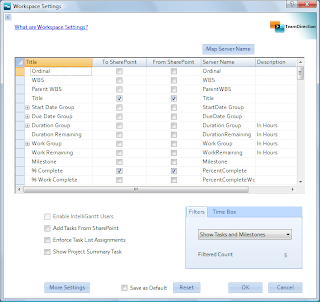
You may notice now there is a new column available, with a button above it no less. This new column, named 'Server Name' let's you attach IntelliGantt to existing SharePoint list columns. In effect, it let's you map your SharePoint fields to Project fields.
This is especially helpful when you've customized your lists to handle specific types of tasks and have built dependencies with other lists-- perhaps a data connection or two. It would also be great if IntelliGantt pulled in fields created by workflow activities so that a project manager could monitor workflow progress within their tool. (In fact you can, but I'll detail it in another post).
For more details on how exactly you can map a project field to a SharePoint field with IntelliGantt, check out our help page.
If you'd like to try it today, check out our 15-day fully functional evaluation.
The latest incarnation of this form is below:

You may notice now there is a new column available, with a button above it no less. This new column, named 'Server Name' let's you attach IntelliGantt to existing SharePoint list columns. In effect, it let's you map your SharePoint fields to Project fields.
This is especially helpful when you've customized your lists to handle specific types of tasks and have built dependencies with other lists-- perhaps a data connection or two. It would also be great if IntelliGantt pulled in fields created by workflow activities so that a project manager could monitor workflow progress within their tool. (In fact you can, but I'll detail it in another post).
For more details on how exactly you can map a project field to a SharePoint field with IntelliGantt, check out our help page.
If you'd like to try it today, check out our 15-day fully functional evaluation.
Saturday, September 19, 2009
The Hidden Talents of our Dog
And now for something completely different...
We have a dog named 'Pudge' approaching 10 years of age. Sure, we've taught him a few tricks-- the basic 'Shake', a simple 'Roll Over' and a couple more. Turns out he had one more trick up his sleeve (yes, our dog thinks he's human so yes, he has sleeves). We would never have found it without the help of our two daughters playing with their blocks.
The kids were playing with 'animal sounds' blocks that, when joined correctly, make sounds-- a pig grunting, a cow mooing..... and a horse whinnying. Imagine our surprise when the kids were trying the sounds of the farmyard and we heard Pudge's contribution.
For whatever reason, it only works with the horse.
We have a dog named 'Pudge' approaching 10 years of age. Sure, we've taught him a few tricks-- the basic 'Shake', a simple 'Roll Over' and a couple more. Turns out he had one more trick up his sleeve (yes, our dog thinks he's human so yes, he has sleeves). We would never have found it without the help of our two daughters playing with their blocks.
The kids were playing with 'animal sounds' blocks that, when joined correctly, make sounds-- a pig grunting, a cow mooing..... and a horse whinnying. Imagine our surprise when the kids were trying the sounds of the farmyard and we heard Pudge's contribution.
For whatever reason, it only works with the horse.
Wednesday, September 02, 2009
Basecamp Todos, Meet Your Due Dates
We've received a ton of feedback since we introduced Basecamp integration into our IntelliGantt products. For such a simple looking web application, Basecamp has an awful lot going on!
Which is a good thing and speaks well to how effective Basecamp's solution works as a communication tool.
Of course, scheduling is still a part of project management and that's where IntelliGantt comes in. We just posted a screencast that shows in detail how you can import a Basecamp project, apply schedules to the deliverables and, best of all, attach due dates back to the Basecamp Todo items. This means team members using their web browsers can see the most important piece of the project-- when their Todo item is due.
We did have to make a few assumptions. For example, when importing a Basecamp todo item, IntelliGantt creates a task. In order to create a task, we need at least a start date. Since Basecamp doesn't have one we use 'today'. Since rescheduling a project in IntelliGantt is as simple as dragging the project summary bar, it works.
Once in IntelliGantt, you can create task dependencies, regroup things in summary tasks and even define hourly rates for resources in order to see cost information.
To show start and finish dates we introduce a special 'Title Format' option that lets you prepend or append start or finish dates to Basecamp Todo Lists or Todo Items. That's a lot of 'ors', so this is a great segue to the screencast which shows you exactly how it works.
When you select a format like, 'prepend finish dates', your next update will adjust all Basecamp Todo items such that the due date will come before the Todo item's display name. This feature is locale aware so that US folks will see the dates formatted as Month/Day/Year while European folks will see Day/Month/Year.
There's a lot going on with this feature, but hopefully it will be simple and easy to use-- just like Basecamp.
Which is a good thing and speaks well to how effective Basecamp's solution works as a communication tool.
Of course, scheduling is still a part of project management and that's where IntelliGantt comes in. We just posted a screencast that shows in detail how you can import a Basecamp project, apply schedules to the deliverables and, best of all, attach due dates back to the Basecamp Todo items. This means team members using their web browsers can see the most important piece of the project-- when their Todo item is due.
We did have to make a few assumptions. For example, when importing a Basecamp todo item, IntelliGantt creates a task. In order to create a task, we need at least a start date. Since Basecamp doesn't have one we use 'today'. Since rescheduling a project in IntelliGantt is as simple as dragging the project summary bar, it works.
Once in IntelliGantt, you can create task dependencies, regroup things in summary tasks and even define hourly rates for resources in order to see cost information.
To show start and finish dates we introduce a special 'Title Format' option that lets you prepend or append start or finish dates to Basecamp Todo Lists or Todo Items. That's a lot of 'ors', so this is a great segue to the screencast which shows you exactly how it works.
When you select a format like, 'prepend finish dates', your next update will adjust all Basecamp Todo items such that the due date will come before the Todo item's display name. This feature is locale aware so that US folks will see the dates formatted as Month/Day/Year while European folks will see Day/Month/Year.
There's a lot going on with this feature, but hopefully it will be simple and easy to use-- just like Basecamp.
Monday, August 17, 2009
Filtering SharePoint Members in your Project
SharePoint is quite flexible in how many ways users can become site members. So flexible, in fact, that you can add every person in the company to a root site and have every sub site inherit that member list.
Which is great, unless your company has 50,000 people in it.
We've listened to our customers at large organizations who are using IntelliGantt and the IntelliGantt Add In for MS Project to run projects within their departments, with external vendors but not across the entire company. The fruit of our efforts (and your suggestions) are two tools: 1) A resource pool that helps you be more selective with who is included and 2) a resource filter that helps you be more selective with who is excluded.
The Resource Pool
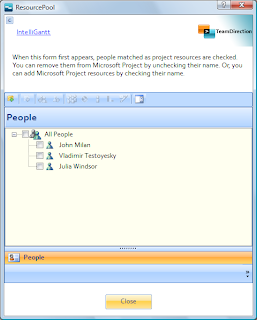
This feature allows you to pull SharePoint members from a specific site, organize them by groups and select individuals you will be working with often. You can add them to your currently selected project by clicking the checkbox by their name, or remove them from the project by unclicking the same checkbox. We even let you enter an hourly rate that will be used when they are assigned to tasks. This is a common scenario and we have a helpful page dedicated to walking you through exactly how it works.
The Resource Filter
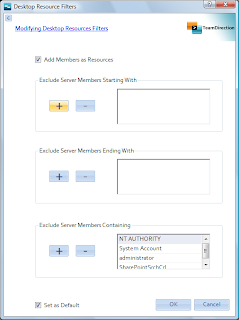
This feature is designed to help you exclude people from your project. For example, if the SharePoint site you are working with has 50,000 users as members, I would strongly suggest unclicking the 'Add Members as Resources' checkbox so that everyone is not pulled into the project. Then, use the resource pool above to be more selective about whom to include.
Or, if your groups is more manageable but there are just a few folks (or system accounts) that don't need to be added to your project, you can define any combination of the three tests shown in the picture: 1) display names that start with a string you provide, 2) display names that end with a string you provide and 3) display names that contain a string you provide.
All three test cases are always run, but you can customize the tests per project. This means if you have a couple system accounts, like NT_AUTHORITY in the picture above, you can easily exclude them from the list. If you'd always like to exlude NT_AUTHORITY (and who wouldn't? :)), you can save the exclusion lists as the default setting for all newly created projects going forward.
Check out the help page for this feature as well.
Taken together, IntelliGantt will help you work with your resources as adroitly as it helps you share your tasks. And again, thanks to our customers for letting us know how important resource filtering is.
Which is great, unless your company has 50,000 people in it.
We've listened to our customers at large organizations who are using IntelliGantt and the IntelliGantt Add In for MS Project to run projects within their departments, with external vendors but not across the entire company. The fruit of our efforts (and your suggestions) are two tools: 1) A resource pool that helps you be more selective with who is included and 2) a resource filter that helps you be more selective with who is excluded.
The Resource Pool

This feature allows you to pull SharePoint members from a specific site, organize them by groups and select individuals you will be working with often. You can add them to your currently selected project by clicking the checkbox by their name, or remove them from the project by unclicking the same checkbox. We even let you enter an hourly rate that will be used when they are assigned to tasks. This is a common scenario and we have a helpful page dedicated to walking you through exactly how it works.
The Resource Filter

This feature is designed to help you exclude people from your project. For example, if the SharePoint site you are working with has 50,000 users as members, I would strongly suggest unclicking the 'Add Members as Resources' checkbox so that everyone is not pulled into the project. Then, use the resource pool above to be more selective about whom to include.
Or, if your groups is more manageable but there are just a few folks (or system accounts) that don't need to be added to your project, you can define any combination of the three tests shown in the picture: 1) display names that start with a string you provide, 2) display names that end with a string you provide and 3) display names that contain a string you provide.
All three test cases are always run, but you can customize the tests per project. This means if you have a couple system accounts, like NT_AUTHORITY in the picture above, you can easily exclude them from the list. If you'd always like to exlude NT_AUTHORITY (and who wouldn't? :)), you can save the exclusion lists as the default setting for all newly created projects going forward.
Check out the help page for this feature as well.
Taken together, IntelliGantt will help you work with your resources as adroitly as it helps you share your tasks. And again, thanks to our customers for letting us know how important resource filtering is.
Thursday, August 13, 2009
A Bigger SharePoint Gantt Chart
[April 2011 Update - The Big Kahuna of SharePoint Gantt Charts]
A lot of customers have been asking about the Gantt chart native to SharePoint and how it could be customized. One of the recurring questions is how to make it bigger. For instance, the Gantt Chart and the Task List are split about 50/50 in the default SharePoint view. Wouldn't it be nice to expand the Gantt view to take up the entire real estate?
Marc Molenaar thought so too, and fortunately he had the time to do it. Check out his blog posting that shows how you can use JQuery to supersize the Gantt Chart.

Great Stuff.
A lot of customers have been asking about the Gantt chart native to SharePoint and how it could be customized. One of the recurring questions is how to make it bigger. For instance, the Gantt Chart and the Task List are split about 50/50 in the default SharePoint view. Wouldn't it be nice to expand the Gantt view to take up the entire real estate?
Marc Molenaar thought so too, and fortunately he had the time to do it. Check out his blog posting that shows how you can use JQuery to supersize the Gantt Chart.

Great Stuff.
Tuesday, August 11, 2009
Rain Makes Headlines in Seattle
From today's front page of the Seattle Times:

Really? Rain in Seattle? At this hour?
This must be a sign of something... a sign it's been a great summer!
Really? Rain in Seattle? At this hour?
This must be a sign of something... a sign it's been a great summer!
Tuesday, July 07, 2009
Timeboxing a Task List
We just added a new feature to both IntelliGantt and the IntelliGantt Add In for Microsoft Project-- task list timeboxing. This was actually a customer request that we thought was a good idea. We worked with the customer for their requirements and this is what we came up with:
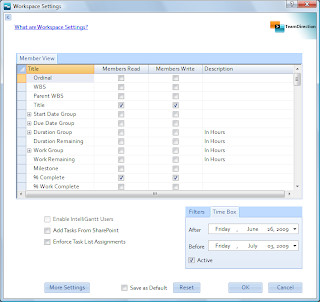
Well, not quite all of that. The new feature is located within our 'Workspace Settings' form that gives you many, many options. The Time Box feature is in the lower right:
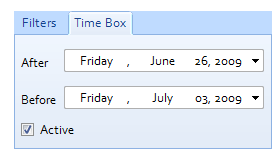
Using these you can specify an 'After' date and a 'Before' date. This means all tasks after X and before Y will be published, synchronized or exported (depending on the operation you chose). This means if you have a long duration project spanning several months, you can provide a bit of focus to the immediate tasks during a defined time.
This will work in combination with the 'Filters' you can specify in the other tab. The logic is the filter will be ANDed to the TimeBox values.
The other new feature is SharePoint specific-- the ability to tell IntelliGantt which task list view to use.
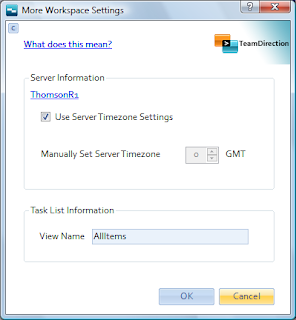
More than a few customers have customized their views and rather than IntelliGantt using the default AllItems, would like IntelliGantt to use one of their smarter views. Now you can click on the 'More Settings' from the Workspace Settings and supply the view you want IntelliGantt to use.
Thanks all for your suggestions!

Well, not quite all of that. The new feature is located within our 'Workspace Settings' form that gives you many, many options. The Time Box feature is in the lower right:

Using these you can specify an 'After' date and a 'Before' date. This means all tasks after X and before Y will be published, synchronized or exported (depending on the operation you chose). This means if you have a long duration project spanning several months, you can provide a bit of focus to the immediate tasks during a defined time.
This will work in combination with the 'Filters' you can specify in the other tab. The logic is the filter will be ANDed to the TimeBox values.
The other new feature is SharePoint specific-- the ability to tell IntelliGantt which task list view to use.

More than a few customers have customized their views and rather than IntelliGantt using the default AllItems, would like IntelliGantt to use one of their smarter views. Now you can click on the 'More Settings' from the Workspace Settings and supply the view you want IntelliGantt to use.
Thanks all for your suggestions!
Monday, June 29, 2009
Bamboo Solutions PM Central Integration
We're keeping this here for posterity, but if you're looking for a great SharePoint Gantt Chart for visualizing and aggregating SharePoint tasks, we recommend the IntelliGantt Web Part.
Bamboo Solutions recently invited us to kick the tires on their PM Central solution. Since IntelliGantt already integrates with their Task Master and Project Portfolio Dashboard, it seemed like a natural. Thankfully, the PM Central solution packages the Task Master and Dashboard into well planned and visually rich SharePoint templates geared toward the project manager and team.
The result is impressive-- a comprehensive view of all your projects with detailed project information in every site. The only thing missing was the ability to synchronize IntelliGantt and Microsoft Project plans. That's where we come in.
Using IntelliGantt or the IntelliGantt Add In for MS Project you can work with your current project plans in PM Central with your team. The project manager plans the schedule and scope, the team report their progress and give their feedback. Where PM Central really shines is with the summary rollups management is always interested in seeing.
We created a page giving you the detailed steps to get IntelliGantt up and going with PM Central and the Task Master. We think it can be done is less than 3 minutes the first time you try. The result will be a schedule the project manager owns, but a plan visible to the entire team.
The result is impressive-- a comprehensive view of all your projects with detailed project information in every site. The only thing missing was the ability to synchronize IntelliGantt and Microsoft Project plans. That's where we come in.
Using IntelliGantt or the IntelliGantt Add In for MS Project you can work with your current project plans in PM Central with your team. The project manager plans the schedule and scope, the team report their progress and give their feedback. Where PM Central really shines is with the summary rollups management is always interested in seeing.
We created a page giving you the detailed steps to get IntelliGantt up and going with PM Central and the Task Master. We think it can be done is less than 3 minutes the first time you try. The result will be a schedule the project manager owns, but a plan visible to the entire team.
Friday, June 26, 2009
A Few Hundred Pages of Documentation...
... makes for a quiet blog.
I'm currently helping a client migrate several terabytes worth of data into their SharePoint server. It's a fun problem as there's a Siebel CRM application that most of the business folks use, which of course needs to integrate with SharePoint. Naturally you'd think it'd be easy (heh heh). The issue was every document was being stored in Siebel as an attachment to entities and activities, which makes it really hard to do document management things such as versioning. They developed a system that sort of worked, but when a big government agency asks you about your document management strategy... well, then attachments don't look so good.
The document management and versioning answer turned out to be SharePoint, but the trick was how to match Siebel's relational view of the world with SharePoint's hiearchical (as in web addressing) view. It turned out the business organization had a natural encapsulation within Siebel that lended itself very well to a URLs hiearchical requirements. So we developed an addressing scheme the Siebel developers could generate from Siebel data, transform it into a URL using predefined rules and thereby point users to the right spot in SharePoint.
And did I mention a few hundred pages to document this all? Just adding to the terabytes!
I'm currently helping a client migrate several terabytes worth of data into their SharePoint server. It's a fun problem as there's a Siebel CRM application that most of the business folks use, which of course needs to integrate with SharePoint. Naturally you'd think it'd be easy (heh heh). The issue was every document was being stored in Siebel as an attachment to entities and activities, which makes it really hard to do document management things such as versioning. They developed a system that sort of worked, but when a big government agency asks you about your document management strategy... well, then attachments don't look so good.
The document management and versioning answer turned out to be SharePoint, but the trick was how to match Siebel's relational view of the world with SharePoint's hiearchical (as in web addressing) view. It turned out the business organization had a natural encapsulation within Siebel that lended itself very well to a URLs hiearchical requirements. So we developed an addressing scheme the Siebel developers could generate from Siebel data, transform it into a URL using predefined rules and thereby point users to the right spot in SharePoint.
And did I mention a few hundred pages to document this all? Just adding to the terabytes!
Wednesday, June 03, 2009
IntelliGantt in the Show Me State
There's no such thing as bad press-- especially when it's really good.
I had the pleasure to read Jamie Scheppers post describing her experience with Basecamp, Microsoft Project and IntelliGantt. In addition to showing the superb level of education the University of Missouri provides, it also captures the exact user scenario IntelliGantt is designed for-- bringing systems together in order to bring people together.
We're happy to provide a solution that makes sense and look forward to working with Jamie and other Basecamp users to improve the experience, provide more features and make the integration that much better.
If you've got something to say, be sure to let us know!
I had the pleasure to read Jamie Scheppers post describing her experience with Basecamp, Microsoft Project and IntelliGantt. In addition to showing the superb level of education the University of Missouri provides, it also captures the exact user scenario IntelliGantt is designed for-- bringing systems together in order to bring people together.
We're happy to provide a solution that makes sense and look forward to working with Jamie and other Basecamp users to improve the experience, provide more features and make the integration that much better.
If you've got something to say, be sure to let us know!
Tuesday, May 19, 2009
What the Competition will do
I was just on the phone with a prospective customer today doing an IntelliGantt demonstration and accidentally learned something about the competition. She's currently using the free, fully-functional 15-day evaluation of IntelliGantt and trying it out for their team. She is also testing one of our competitors at the same time. As a result, after installing IntelliGantt the two products were visible on the menu bar-- side-by-side (cue spaghetti western music).
Until you restart MS Project.
So she asks me: 'Why did the IntelliGantt menu disappear?'
Hmmm... well, we haven't seen that one happening in-house in the test lab, so we go through the code, put in several checks and add additional logging. These changes go in to one of our automatic updates customers receive.
It turns out one of our competitors is removing IntelliGantt from the Project menu. During the online demo she confirms that if she removes the other add-in, the IntelliGantt menu reappears.
Good to know.
Why would the competition resort to such tactic? The reason is clear-- when compared side-by-side for value there is no comparison. IntelliGantt offers the most robust, feature-complete client side integration between Microsoft Project and SharePoint available today.
We don't charge your SharePoint users an access license. We don't require complex server installations. We don't try to upsell you to more expensive plans. Heck, we don't require anything of the server except that web services be enabled.
We just make it simple. Want to work with SharePoint out of the box? IntelliGantt is your best solution. Want to make use of the 'Fabulous Forty' templates from Microsoft? Again, it's IntelliGantt. Need a richer web-based Gantt Chart? IntelliGantt is happy to work with web part providers like Bamboo Solution's Task Master.
Integration with a Portfolio Dashboard? Check.
Client side resource pool? Check.
Client side multi-project dashboard? Check.
Robust baselining and actuals support? Check-a-Roonie!
Our job is to provide the best solution connecting your project desktop with online services. Looks like we've done so well that the competition wishes you'd never seen it.
Until you restart MS Project.
So she asks me: 'Why did the IntelliGantt menu disappear?'
Hmmm... well, we haven't seen that one happening in-house in the test lab, so we go through the code, put in several checks and add additional logging. These changes go in to one of our automatic updates customers receive.
It turns out one of our competitors is removing IntelliGantt from the Project menu. During the online demo she confirms that if she removes the other add-in, the IntelliGantt menu reappears.
Good to know.
Why would the competition resort to such tactic? The reason is clear-- when compared side-by-side for value there is no comparison. IntelliGantt offers the most robust, feature-complete client side integration between Microsoft Project and SharePoint available today.
We don't charge your SharePoint users an access license. We don't require complex server installations. We don't try to upsell you to more expensive plans. Heck, we don't require anything of the server except that web services be enabled.
We just make it simple. Want to work with SharePoint out of the box? IntelliGantt is your best solution. Want to make use of the 'Fabulous Forty' templates from Microsoft? Again, it's IntelliGantt. Need a richer web-based Gantt Chart? IntelliGantt is happy to work with web part providers like Bamboo Solution's Task Master.
Integration with a Portfolio Dashboard? Check.
Client side resource pool? Check.
Client side multi-project dashboard? Check.
Robust baselining and actuals support? Check-a-Roonie!
Our job is to provide the best solution connecting your project desktop with online services. Looks like we've done so well that the competition wishes you'd never seen it.
Tuesday, May 05, 2009
Viewing Parent/Child and Task Dependencies in Task Master
IntelliGantt supports Bamboo Solutions nifty Task Master web part which lets you see parent/child relationships, task dependencies and milestones within SharePoint via your web browser. However, by default IntelliGantt uses the 'Tasks and Milestones' filter, which filters out summary tasks.
Because this creates a subset of all your tasks, IntelliGantt essentially 'flattens' the hiearchy-- because summary tasks are not shown there is no parent to set.
Similarly, if a filter is active, task dependencies are not shown because its either not clear or possibly even misleading to attempt a partial set of task dependencies.
Therefore, if you want to make use of all the Task Master features with IntelliGantt (both the desktop and the MS Project Add In) you will want to make sure the filter in the Workspace Settings is set to 'Show All Tasks'. By default it is 'Tasks and Milestones'.
Here's a screenshot of what you want to set:
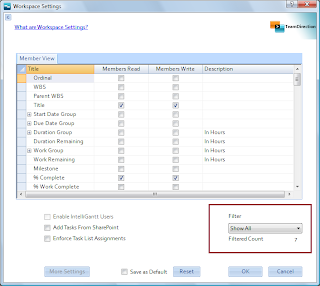
To access this in IntelliGantt, select a project, right-click and choose 'Workspace Settings'.
To access this in the IntelliGantt Add In for MS Project, drop down the 'IntelliGantt' menu to the 'Project' menu flyout and choose 'Settings'.
Also, be sure to activate the 'Milestone' field so that milestone information is sent to the Task Master. This maps to any zero duration task in IntelliGantt. In the Add In, its any zero duration task or any task marked 'true' for the MS Project Milestone field.
Finally, if you consistently work with the Task Master, you may want to click the 'Save as Default' checkbox at the bottom of the Workspace Settings. This will save your current settings and apply them to all new IntelliGantt projects going forward-- like Task Filter.
Because this creates a subset of all your tasks, IntelliGantt essentially 'flattens' the hiearchy-- because summary tasks are not shown there is no parent to set.
Similarly, if a filter is active, task dependencies are not shown because its either not clear or possibly even misleading to attempt a partial set of task dependencies.
Therefore, if you want to make use of all the Task Master features with IntelliGantt (both the desktop and the MS Project Add In) you will want to make sure the filter in the Workspace Settings is set to 'Show All Tasks'. By default it is 'Tasks and Milestones'.
Here's a screenshot of what you want to set:

To access this in IntelliGantt, select a project, right-click and choose 'Workspace Settings'.
To access this in the IntelliGantt Add In for MS Project, drop down the 'IntelliGantt' menu to the 'Project' menu flyout and choose 'Settings'.
Also, be sure to activate the 'Milestone' field so that milestone information is sent to the Task Master. This maps to any zero duration task in IntelliGantt. In the Add In, its any zero duration task or any task marked 'true' for the MS Project Milestone field.
Finally, if you consistently work with the Task Master, you may want to click the 'Save as Default' checkbox at the bottom of the Workspace Settings. This will save your current settings and apply them to all new IntelliGantt projects going forward-- like Task Filter.
Wednesday, April 29, 2009
TeamDirection Sets Up Basecamp
A brief note about a major new feature we've just put in-- integration with Basecamp.
Our philosophy has been, and continues to be-- provide the best tools on the desktop for the project manager to connect with his or her team.
The most productive tool for the project manager married with compelling and productive solutions for the team. We think it makes sense. See what you think of the screencasts. Or better yet, try it out for yourself. Both the IntelliGantt desktop and the IntelliGantt Add In for Microsoft Project have this feature as of today.
IntelliGantt Basecamp Introduction
IntelliGantt Basecamp Options
Microsoft Project Basecamp Introduction
Our philosophy has been, and continues to be-- provide the best tools on the desktop for the project manager to connect with his or her team.
The most productive tool for the project manager married with compelling and productive solutions for the team. We think it makes sense. See what you think of the screencasts. Or better yet, try it out for yourself. Both the IntelliGantt desktop and the IntelliGantt Add In for Microsoft Project have this feature as of today.
IntelliGantt Basecamp Introduction
IntelliGantt Basecamp Options
Microsoft Project Basecamp Introduction
Monday, April 27, 2009
Build 4.0.0.147 Released -- Task Master Support
We're keeping this here for posterity, but if you're looking for a great SharePoint Gantt Chart for visualizing and aggregating SharePoint tasks, we recommend the IntelliGantt Web Part.
Just a note that build 4.0.0.147 of IntelliGantt and the IntelliGantt Add In for Microsoft Project has been pushed to the web. This one has rich support for Bamboo Solutions Task Master web part. This improves the Gantt Chart experience in SharePoint with parent/child relationships, task dependencies, milestones and scaling.
You might also notice a new sharing option. Because we're still building the support pages it's still on the QT.
Just a note that build 4.0.0.147 of IntelliGantt and the IntelliGantt Add In for Microsoft Project has been pushed to the web. This one has rich support for Bamboo Solutions Task Master web part. This improves the Gantt Chart experience in SharePoint with parent/child relationships, task dependencies, milestones and scaling.
You might also notice a new sharing option. Because we're still building the support pages it's still on the QT.
Friday, April 24, 2009
Now Supporting Bamboo's Task Master
We're keeping this here for posterity, but if you're looking for a great SharePoint Gantt Chart for visualizing and aggregating SharePoint tasks, we recommend the IntelliGantt Web Part.
We were hard at work building a great new connectivity feature into IntelliGantt when the phone started ringing.
'I need a better Gantt Chart within SharePoint.'
'How can I show parent child relationships in the SharePoint Gantt Chart?'
'Is there any way to show task dependencies in the SharePoint Gantt Chart?'
'What about scaling?' (I assume she meant 'in the SharePoint Gantt Chart' as well)
In fact, I think the single most popular post on this blog is this one-- all about creating a Gantt Chart view for your task list.
Point Taken! If only there was a good Gantt Chart for SharePoint.....
Turns out there is: the Task Master web part from Bamboo Solutions. In fact, last November we hooked up IntelliGantt and the IntelliGantt Add In for Microsoft Project to the Bamboo Project Portfolio Dashboard.
This April I'm pleased to say we just hooked up IntelliGantt (both flavors) to the Bamboo Task Master. Import, Export AND bi-directional synchronization supported. Resources with hourly rates, Costing and Work supported. Resource Pools, Templates, Multi-Project view all supporting excellent collaboration.
It's fresh out of the oven, but if you'd like to beta test it then send support [at] teamdirection [dot] com a note and you can try it today. The beta period shouldn't be long-- a week or so-- as the Task Master is built upon the standard SharePoint Task List which IntelliGantt has been working with for years. We just had to get the new fields Bamboo added situated-- Parent Task and Predecessor Task.
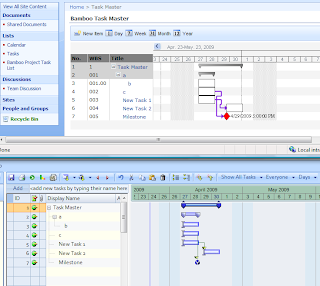
Here's a picture of the Task Master above and the IntelliGantt desktop below.
Now back to the really cool connectivity feature to surprise you with next week :)
We were hard at work building a great new connectivity feature into IntelliGantt when the phone started ringing.
'I need a better Gantt Chart within SharePoint.'
'How can I show parent child relationships in the SharePoint Gantt Chart?'
'Is there any way to show task dependencies in the SharePoint Gantt Chart?'
'What about scaling?' (I assume she meant 'in the SharePoint Gantt Chart' as well)
In fact, I think the single most popular post on this blog is this one-- all about creating a Gantt Chart view for your task list.
Point Taken! If only there was a good Gantt Chart for SharePoint.....
Turns out there is: the Task Master web part from Bamboo Solutions. In fact, last November we hooked up IntelliGantt and the IntelliGantt Add In for Microsoft Project to the Bamboo Project Portfolio Dashboard.
This April I'm pleased to say we just hooked up IntelliGantt (both flavors) to the Bamboo Task Master. Import, Export AND bi-directional synchronization supported. Resources with hourly rates, Costing and Work supported. Resource Pools, Templates, Multi-Project view all supporting excellent collaboration.
It's fresh out of the oven, but if you'd like to beta test it then send support [at] teamdirection [dot] com a note and you can try it today. The beta period shouldn't be long-- a week or so-- as the Task Master is built upon the standard SharePoint Task List which IntelliGantt has been working with for years. We just had to get the new fields Bamboo added situated-- Parent Task and Predecessor Task.
Here's a picture of the Task Master above and the IntelliGantt desktop below.

Now back to the really cool connectivity feature to surprise you with next week :)
Tuesday, April 21, 2009
Forms Based SharePoint Login
A few people have been asking about this as they're working with IntelliGantt. SharePoint has a feature whereby you can 'disable' NTLM login and instead present a web form authentication challenge. Up to now IntelliGantt would alway use NTLM by default. However, with build 4.0.0.146 (which we just posted), IntelliGantt provides the ability to force a login when first connecting with a SharePoint site.
The built-in Windows Login form will still appear, but the value IntelliGantt will use will duplicate the same username/password values in the form authentication.
By default this 'Require Initial Login' is turned off. You turn it on by opening the 'SharePoint Settings' form. In the desktop this is found under the 'Settings' menu. In the Add In, it's also found under IntelliGantt->Settings. Because there are just a few way to customize SharePoint my hunch is you'll see more SharePoint Settings options in the future.
Here is the screen with the checkbox at the bottom. In case you're wondering what all the 'priority' and 'status' strings are for, this is how International users can customize the priority and status fields IntelliGantt uses when updating task values in SharePoint in your preferred language.
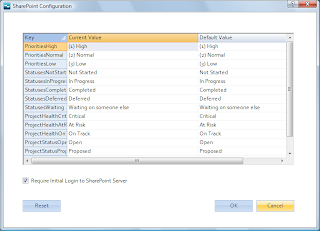
The built-in Windows Login form will still appear, but the value IntelliGantt will use will duplicate the same username/password values in the form authentication.
By default this 'Require Initial Login' is turned off. You turn it on by opening the 'SharePoint Settings' form. In the desktop this is found under the 'Settings' menu. In the Add In, it's also found under IntelliGantt->Settings. Because there are just a few way to customize SharePoint my hunch is you'll see more SharePoint Settings options in the future.
Here is the screen with the checkbox at the bottom. In case you're wondering what all the 'priority' and 'status' strings are for, this is how International users can customize the priority and status fields IntelliGantt uses when updating task values in SharePoint in your preferred language.

Friday, April 10, 2009
Modifying Content Types With Additional List Fields
One of IntelliGantt's most powerful features is it's 'Workspace Settings', which allows the project manager to add fields to a task list, dynamically update read/write privileges, change their display name and description. When working with some templates, however, you may be flummoxed when you see your fields in the overall view (like Actual Duration and Duration):
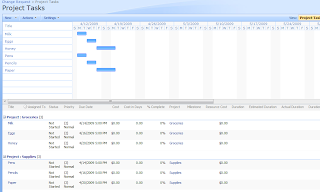
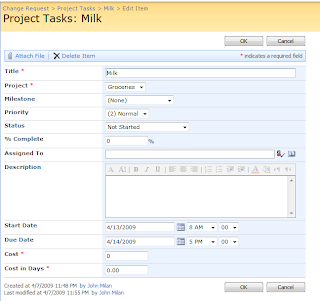
But when you go to edit a task, the custom fields are not there:
In fact, it feels like it should just work when you go to the task list's List Settings administration page and see the custom fields there:
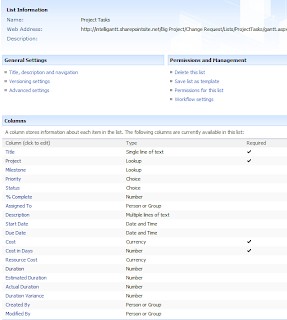
The unknown key to this conundrum is that the list is actually using a content type to define its fields. This specific list is from the the 'Change Request' template from the Microsoft 'Fabulous Forty' pack. Other templates from the 'Fabulous Forty' also use content types to define the fields for their Project Tasks, Project Milestones and other lists. In fact, content types are very powerful in that they encourage re-use. The problem here is more with the UI as the fact that a content type is in use is totally hidden.
To add your custom fields to the content type this list is using, first click on Advanced Settings, located in the General Settings group near the top. Clicking on Advanced Settings let's you see this very important setting:

In order to add fields to our content type we will need to manage the content type, so click 'Yes' for this setting. Now when we return to the List Settings page, notice a slight change (helpfully outlined in burgandy):

There's that content type! This Project Tasks list is using a 'Project Task' content type to define the fields. Click on the 'Project Task' entry which takes us to this page where we can refine it:
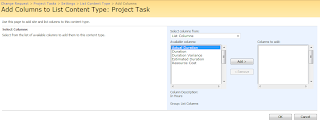
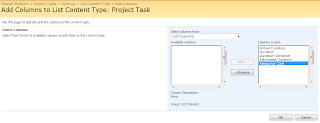
Select the custom fields you wish to add to the Project Task content type (all of them in this case):
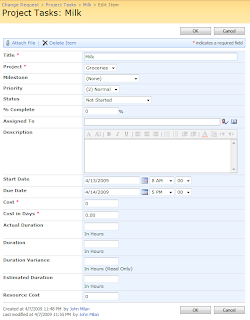
The end result is that now these custom fields will be available when you edit a task:
This isn't specific to task list, but is a general solution for how SharePoint binds lists with content types. The key is the enabling content type management in the Advanced Settings.
Thanks to Jack Hill from Oxbo International for working with us to solve this puzzle.

But when you go to edit a task, the custom fields are not there:

In fact, it feels like it should just work when you go to the task list's List Settings administration page and see the custom fields there:

The unknown key to this conundrum is that the list is actually using a content type to define its fields. This specific list is from the the 'Change Request' template from the Microsoft 'Fabulous Forty' pack. Other templates from the 'Fabulous Forty' also use content types to define the fields for their Project Tasks, Project Milestones and other lists. In fact, content types are very powerful in that they encourage re-use. The problem here is more with the UI as the fact that a content type is in use is totally hidden.
To add your custom fields to the content type this list is using, first click on Advanced Settings, located in the General Settings group near the top. Clicking on Advanced Settings let's you see this very important setting:

In order to add fields to our content type we will need to manage the content type, so click 'Yes' for this setting. Now when we return to the List Settings page, notice a slight change (helpfully outlined in burgandy):

There's that content type! This Project Tasks list is using a 'Project Task' content type to define the fields. Click on the 'Project Task' entry which takes us to this page where we can refine it:

Select the custom fields you wish to add to the Project Task content type (all of them in this case):

The end result is that now these custom fields will be available when you edit a task:

This isn't specific to task list, but is a general solution for how SharePoint binds lists with content types. The key is the enabling content type management in the Advanced Settings.
Thanks to Jack Hill from Oxbo International for working with us to solve this puzzle.
Sunday, April 05, 2009
Marking Fields with New or Unread Data
Up to now in IntelliGantt we've been marking entire rows as unread. Which is good, but considering an IntelliGantt row can have more than 100 custom fields, we thought we could do better. For instance, it might be useful to show which fields changed after a synchronization. It turns out the difference logic we use can do a field-by-field comparison, which means we can do something like this:
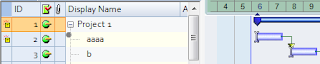
You can see the top two rows have unread markers on the left. More subtle is the dark gray circle in the top left of the task display name in row 2. This is the 'unread field' marker. We originally started with a similar 'unread task' marker in the cell, but it turns in to be a lot of yellow and is so vibrant its quite distracting.
The gray circle is not as visually intrusive so you won't lose track of the task data. There's also some interesting things we can do with this as well, such as changing its color when the mouse is over it. We're even thinking of making it behave like a button.
What will it do? Hmm... We have an idea for that.

You can see the top two rows have unread markers on the left. More subtle is the dark gray circle in the top left of the task display name in row 2. This is the 'unread field' marker. We originally started with a similar 'unread task' marker in the cell, but it turns in to be a lot of yellow and is so vibrant its quite distracting.
The gray circle is not as visually intrusive so you won't lose track of the task data. There's also some interesting things we can do with this as well, such as changing its color when the mouse is over it. We're even thinking of making it behave like a button.
What will it do? Hmm... We have an idea for that.
Friday, April 03, 2009
Work, Estimated Work, Actual Work, Remaining Work and Work Variance All At Once
Here's a bit more detail on how you can track Work, Estimated Work, Actual Work, Remaining Work and Work Variance using either IntelliGantt or the IntelliGantt Add In for Microsoft Project with WSS 3.0/MOSS 2007.
First of all, you want to make sure your 'Workspace Settings' activate the work fields you need. For this example we will use all the Work Group and the Work Remaining fields, so we mark them as 'Members Read' and 'Members Write' like so:
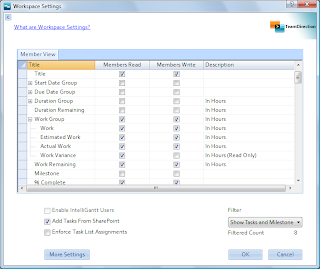
You won't be able to set the 'Members Write' checkbox for Work Variance because this is a read only field. That is, the value is always computed.
When you share a project to SharePoint with these workspace settings, you'll have the work fields you enabled available for you to edit, like so:
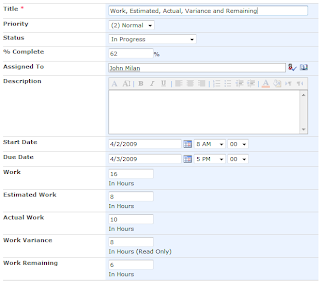
In IntelliGantt or Microsoft Project, when you update 'Work' fields, you will see the ramifications to your updates immediately with schedule changes, percent complete changes or work percent complete changes. This makes it easy to also undo a change. With SharePoint, we get all the data at once and its up to IntelliGantt to make sense of it.
So how does it handle changes to Work, Estimated Work, Actual Work and Remaining Work at once? IntelliGantt enforces an implied order to your changes. That is, IntelliGantt will order the datastream coming back from SharePoint and evaluate the 'Work' fields in the following order:
1) Work
2) Estimated Work
3) Actual Work
4) Remaining Work
Because IntelliGantt has its own scheduling model, it can apply changes that affect the schedule as it works down the list. For example, let's say I only update the Work field. We see in the above example it is 16 hours. What if I make it 24 hours?
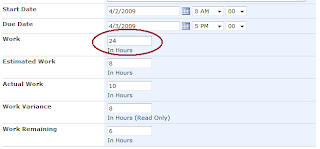
I click 'Update' in IntelliGantt and it communicates with SharePoint, performs its calculations and changes the list to...
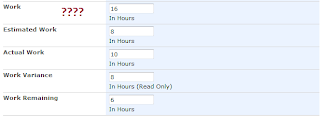
Wait a second, what happened? The answer is that first it applied the change to Work, which increased from 16 hours to 24 hours. This resulted in the project model being updated. Estimated Work and Actual Work were unaffected by this change. Remaining Work, however, was affected. In the IntelliGantt model the Remaining Work value jumped from 6 hours to 14 hours; an increase of 8 hours-- the same 8 hours we increased Work by.
However, the value in the SharePoint field Remaining Work was still 6. It had not changed. So, as IntelliGantt worked through the order of 'work field' updates, it computed the difference between the IntelliGantt models Remaining Work and SharePoint's incoming data value for Remaining Work. That value? Negative 8 hours, which cancelled the 8 hours we just added. The model worked perfectly! :)
For those non-model types (myself included in this category), we can do a couple things to change behavior so that our Work update 'sticks'.
1) We can turn off the 'Members Write' flag for the Remaining Work field. If this flag is off, IntelliGantt will not receive the Remaining Work value, the difference won't be computed and therefore the model won't add the opposite of the Work value we put in.
2) We can update what we want the new Remaining Work value to be. If we add 8 hours to Work, then we can add 8 hours to Remaining Work. When IntelliGantt adds the new Work value, it will add 8 hours to Work and to Remaining Work in its model. As IntelliGantt works through its order of updates, when it gets to Remaining Work, it will compare the incoming SharePoint value with the value in its model-- and it will match. So no update will happen. Which means Work will be 24 hours and Remaining Work will be 14 hours.
Would you believe there's actually a third way to update Work without updating two fields or performing any match? Remember that these work fields are processed in the order defined above: starting with Work and finishing with Remaining Work. We can take advantage of this and only update Remaining Work like so:
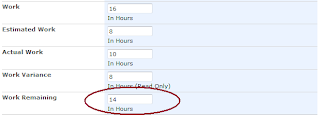
When IntelliGantt processes the incoming data, it will evaluate the work fields as follows:
1) Work -- No Change
2) Estimated Work -- No Change
3) Actual Work -- No Change
4) Remaining Work -- 8 hour change therefore add 8 hours to Work
Of course, we don't want to always add to our work load. We also want to get things done. This is best done by changing Actual Work to reflect how much work you've done and then by changing Remaining Work to reflect how much work you believe is remaining. For example, with our original values:
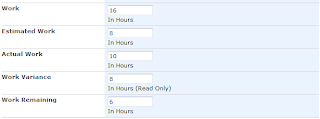
Let's say I've actually worked (yes, hard to believe) an additional 2 hours but believe there's still 5 hours remaining. In this case, I would add 2 hours to the existing 10 hours in Actual Work and subtract a single hour from Remaining Work.
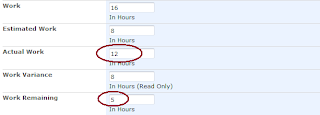
When IntelliGantt performs a synchronization, it will do the following:
1) Work -- No Change
2) Estimated Work -- No Change
3) Actual Work -- Add 2 hours and, by implication, subtract 2 hours from Remaining Work
4) Remaining Work -- Add 1 hour and, by implication, add 1 hour to Work
The end result will look like this:
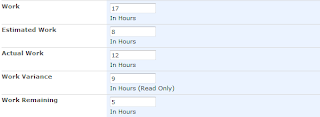
Granted, it is easier to simply modify the percent complete field and call it good. But if you'd like to be more rigorous than percent complete updates and want to start tracking hours, simple math with Actual Work and Remaining Work can lead to powerful results.
First of all, you want to make sure your 'Workspace Settings' activate the work fields you need. For this example we will use all the Work Group and the Work Remaining fields, so we mark them as 'Members Read' and 'Members Write' like so:

You won't be able to set the 'Members Write' checkbox for Work Variance because this is a read only field. That is, the value is always computed.
When you share a project to SharePoint with these workspace settings, you'll have the work fields you enabled available for you to edit, like so:

In IntelliGantt or Microsoft Project, when you update 'Work' fields, you will see the ramifications to your updates immediately with schedule changes, percent complete changes or work percent complete changes. This makes it easy to also undo a change. With SharePoint, we get all the data at once and its up to IntelliGantt to make sense of it.
So how does it handle changes to Work, Estimated Work, Actual Work and Remaining Work at once? IntelliGantt enforces an implied order to your changes. That is, IntelliGantt will order the datastream coming back from SharePoint and evaluate the 'Work' fields in the following order:
1) Work
2) Estimated Work
3) Actual Work
4) Remaining Work
Because IntelliGantt has its own scheduling model, it can apply changes that affect the schedule as it works down the list. For example, let's say I only update the Work field. We see in the above example it is 16 hours. What if I make it 24 hours?

I click 'Update' in IntelliGantt and it communicates with SharePoint, performs its calculations and changes the list to...

Wait a second, what happened? The answer is that first it applied the change to Work, which increased from 16 hours to 24 hours. This resulted in the project model being updated. Estimated Work and Actual Work were unaffected by this change. Remaining Work, however, was affected. In the IntelliGantt model the Remaining Work value jumped from 6 hours to 14 hours; an increase of 8 hours-- the same 8 hours we increased Work by.
However, the value in the SharePoint field Remaining Work was still 6. It had not changed. So, as IntelliGantt worked through the order of 'work field' updates, it computed the difference between the IntelliGantt models Remaining Work and SharePoint's incoming data value for Remaining Work. That value? Negative 8 hours, which cancelled the 8 hours we just added. The model worked perfectly! :)
For those non-model types (myself included in this category), we can do a couple things to change behavior so that our Work update 'sticks'.
1) We can turn off the 'Members Write' flag for the Remaining Work field. If this flag is off, IntelliGantt will not receive the Remaining Work value, the difference won't be computed and therefore the model won't add the opposite of the Work value we put in.
2) We can update what we want the new Remaining Work value to be. If we add 8 hours to Work, then we can add 8 hours to Remaining Work. When IntelliGantt adds the new Work value, it will add 8 hours to Work and to Remaining Work in its model. As IntelliGantt works through its order of updates, when it gets to Remaining Work, it will compare the incoming SharePoint value with the value in its model-- and it will match. So no update will happen. Which means Work will be 24 hours and Remaining Work will be 14 hours.
Would you believe there's actually a third way to update Work without updating two fields or performing any match? Remember that these work fields are processed in the order defined above: starting with Work and finishing with Remaining Work. We can take advantage of this and only update Remaining Work like so:

When IntelliGantt processes the incoming data, it will evaluate the work fields as follows:
1) Work -- No Change
2) Estimated Work -- No Change
3) Actual Work -- No Change
4) Remaining Work -- 8 hour change therefore add 8 hours to Work
Of course, we don't want to always add to our work load. We also want to get things done. This is best done by changing Actual Work to reflect how much work you've done and then by changing Remaining Work to reflect how much work you believe is remaining. For example, with our original values:

Let's say I've actually worked (yes, hard to believe) an additional 2 hours but believe there's still 5 hours remaining. In this case, I would add 2 hours to the existing 10 hours in Actual Work and subtract a single hour from Remaining Work.

When IntelliGantt performs a synchronization, it will do the following:
1) Work -- No Change
2) Estimated Work -- No Change
3) Actual Work -- Add 2 hours and, by implication, subtract 2 hours from Remaining Work
4) Remaining Work -- Add 1 hour and, by implication, add 1 hour to Work
The end result will look like this:

Granted, it is easier to simply modify the percent complete field and call it good. But if you'd like to be more rigorous than percent complete updates and want to start tracking hours, simple math with Actual Work and Remaining Work can lead to powerful results.
Subscribe to:
Posts (Atom)


 Posts
Posts


