
We just entered a support note I wanted to raise awareness of because there are so many SharePoint 2007 users out there. Our detailed write-up and solution is in our forum, but in a nutshell, if you use our IntelliGantt2007.WSP solution on an out-of-the-box SharePoint 2007 configuration on an out-of-the-box Windows Server 2003 configuration, then the IntelliGantt.xap Silverlight package will not be served by IIS.
The solution is to add .xap file extensions to the list of approved MIME Types for IIS.
Thankfully, SharePoint 2010 and Windows Server 2008 recognize .xap files by default so this is not an issue for newer infrastructure.
Nor is this an issue when using the SharePoint 2007 Rich Content Web Part to view .xap files. It's only with the 2007 specific WSP solution.
Showing posts with label Silverlight. Show all posts
Showing posts with label Silverlight. Show all posts
Monday, October 11, 2010

Thursday, September 23, 2010
Publish MS Project 2010 Tasks to SharePoint 2007
Continuing on in our feature matrix, now we'd like to show how the IntelliGantt Add In for MS Project can publish tasks from MS Project 2010 to SharePoint 2007 task lists-- or to SharePoint 2010 task lists for that matter.
As you know, MS Project 2010 Professional now has the ability to synchronize project columns with SharePoint 2010 columns. But what about SharePoint 2007? Not supported. But we're happy to let you know that our IntelliGantt Add In for MS Project 2007 works just fine with MS Project 2010, Standard or Professional, which means you can still use those ancient SharePoint 2007 sites everyone has bookmarked in their web browsers.
You can install the IntelliGantt Add In for MS Project 2007 or for MS Project 2010. You can even start with MS Project 2007, install our Add In and then migrate to MS Project 2010 and still be connected to your SharePoint 2007 servers.
Let's see it in action.
First we will create a project with our 'compass' theme, this time focusing on the South.
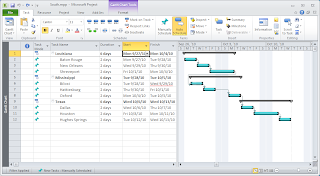
When you install add ins with MS Project 2010, you get an 'Add-Ins' tab on the ribbon. The IntelliGantt Add In can be found here.
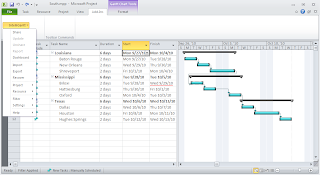
Just as you normally would, you use the 'Share Wizard' to select a SharePoint site and a task list.
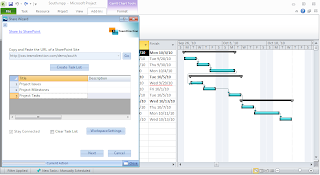
This particlar task list is from one of the 'Fabulous Forty' templates that were available with SharePoint 2007 and contains tons of great features. (Note: I'm not sure if SharePoint 2010 has a Fabulous Forty as well. It seems like it should.) As you would expect, the tasks are in the Gantt view of this templates task list.
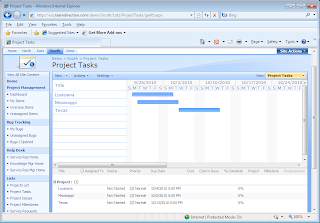
Of course, this view is still just as restrictive as all the SharePoint task views in that it doesn't really show you a full hierarchy and its dependencies. For that, we've created the IntelliGantt Web Part, which displays the full hierarchy and task predecessor links. This time, though, I'm going to show another feature-- our Explorer capability. Just click on the pith helmet and you'll see: Our SharePoint Explorer.
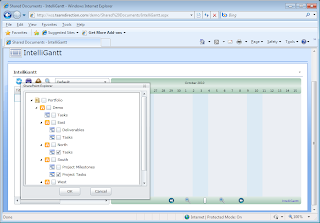
In this scenario we have a parent site called 'Demo' and four subsites named North, East, West and South. We've placed the IntelliGantt Web Part within the 'Demo' site, which is the parent site of both 'North' and 'South', in order to get a bigger view of the world. The SharePoint Explorer begins at the 'Demo' site, discovers all the sub sites with task lists and presents them. We simply mark the checkboxes we wish to see in our view, click 'OK' and...
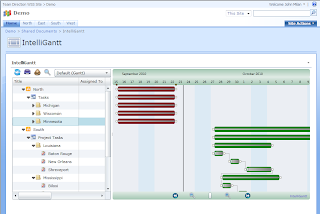
... see the North and South united together. Talk about a powerful feature!
As you know, MS Project 2010 Professional now has the ability to synchronize project columns with SharePoint 2010 columns. But what about SharePoint 2007? Not supported. But we're happy to let you know that our IntelliGantt Add In for MS Project 2007 works just fine with MS Project 2010, Standard or Professional, which means you can still use those ancient SharePoint 2007 sites everyone has bookmarked in their web browsers.
You can install the IntelliGantt Add In for MS Project 2007 or for MS Project 2010. You can even start with MS Project 2007, install our Add In and then migrate to MS Project 2010 and still be connected to your SharePoint 2007 servers.
Let's see it in action.
First we will create a project with our 'compass' theme, this time focusing on the South.

When you install add ins with MS Project 2010, you get an 'Add-Ins' tab on the ribbon. The IntelliGantt Add In can be found here.

Just as you normally would, you use the 'Share Wizard' to select a SharePoint site and a task list.

This particlar task list is from one of the 'Fabulous Forty' templates that were available with SharePoint 2007 and contains tons of great features. (Note: I'm not sure if SharePoint 2010 has a Fabulous Forty as well. It seems like it should.) As you would expect, the tasks are in the Gantt view of this templates task list.

Of course, this view is still just as restrictive as all the SharePoint task views in that it doesn't really show you a full hierarchy and its dependencies. For that, we've created the IntelliGantt Web Part, which displays the full hierarchy and task predecessor links. This time, though, I'm going to show another feature-- our Explorer capability. Just click on the pith helmet and you'll see: Our SharePoint Explorer.

In this scenario we have a parent site called 'Demo' and four subsites named North, East, West and South. We've placed the IntelliGantt Web Part within the 'Demo' site, which is the parent site of both 'North' and 'South', in order to get a bigger view of the world. The SharePoint Explorer begins at the 'Demo' site, discovers all the sub sites with task lists and presents them. We simply mark the checkboxes we wish to see in our view, click 'OK' and...

... see the North and South united together. Talk about a powerful feature!
Friday, September 17, 2010
Publish MS Project 2007 Tasks to SharePoint 2010
Continuing to illustrate the combinations available to IntelliGantt, Microsoft Project and SharePoint users, today we will focus on publishing the full task hierarchy of a Microsoft Project 2007 plan to a SharePoint 2010 server. This is accomplished by the IntelliGantt Add In for MS Project, which actually works with both MS Project 2007 and MS Project 2010 (32-bit) versions and with SharePoint 2007 and SharePoint 2010. But in the interest of a shorter, more concise post we will focus on MS Project 2007, SharePoint 2010's improved task list and the powerful IntelliGantt Web Part.
First off is a simple project focusing on a few Eastern tasks created in MS Project 2007.
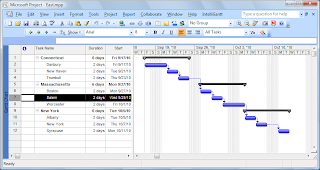
This is very similar to the 'North' project of the previous post in IntelliGantt, but we did add a new twist. Notice that in addition to predecessor links within a grouping we also have predecessor links spanning groups. For example, Trumbull is a predecessor of Boston. (Yes, I know this is not historically accurate. Boston was founded in 1630 and Trumbull was founded in 1797. Its just for demonstration purposes).
Next up we perform the standard IntelliGantt->Share steps to send our tasks in MS Project to a selected SharePoint list. As before, we will change the projects Workspace Settings to take advantage of new features in IntelliGantt and in SharePoint.
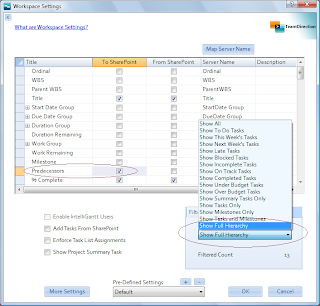
When we demonstrated IntelliGantt working with SharePoint 2007 we mentioned that IntelliGantt, during the Share operation, would create the 'Predecessors' column. With SharePoint 2010, this column is available to you out of the box and IntelliGantt will integrate with it. We also make sure to change the filter to 'Full Hierarchy', as before.
After IntelliGantt has sent the tasks to SharePoint, we see tasks in the improved gantt chart that comes with SharePoint 2010.
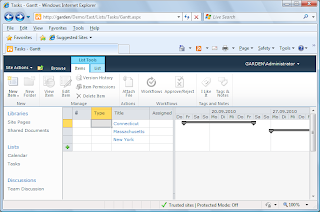
Here it is a little easier to distinguish the summary tasks from normal tasks because the visuals are a little better. However, you will still need to dive into each summary task to see its sub tasks, just as with SharePoint 2007.
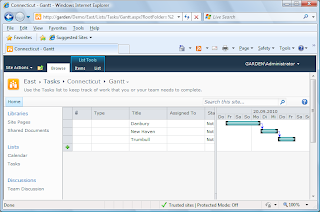
Again, the task visuals have improved a bit as you can see the predecessors when both tasks are in the same group. However, remember the predecessors that spanned groups? For example, Trumbull being a predecessor to Boston? It's not viewable with the SharePoint 2010 task list.
This is where the IntelliGantt Web Part shines as it provides a full hierarchical view, which of course means it shows all predecessor links. The IntelliGantt Web Part brings all your project pieces into view.
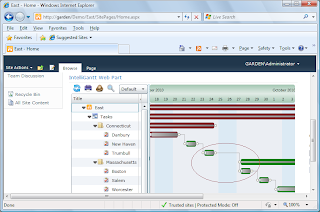
Rest assured that this is just tip of the iceberg for what the IntelliGantt Web Part can do. Other features, such as the ability to add additional SharePoint task lists to the view will be demonstrated in a very near future blog post.
First off is a simple project focusing on a few Eastern tasks created in MS Project 2007.

This is very similar to the 'North' project of the previous post in IntelliGantt, but we did add a new twist. Notice that in addition to predecessor links within a grouping we also have predecessor links spanning groups. For example, Trumbull is a predecessor of Boston. (Yes, I know this is not historically accurate. Boston was founded in 1630 and Trumbull was founded in 1797. Its just for demonstration purposes).
Next up we perform the standard IntelliGantt->Share steps to send our tasks in MS Project to a selected SharePoint list. As before, we will change the projects Workspace Settings to take advantage of new features in IntelliGantt and in SharePoint.

When we demonstrated IntelliGantt working with SharePoint 2007 we mentioned that IntelliGantt, during the Share operation, would create the 'Predecessors' column. With SharePoint 2010, this column is available to you out of the box and IntelliGantt will integrate with it. We also make sure to change the filter to 'Full Hierarchy', as before.
After IntelliGantt has sent the tasks to SharePoint, we see tasks in the improved gantt chart that comes with SharePoint 2010.

Here it is a little easier to distinguish the summary tasks from normal tasks because the visuals are a little better. However, you will still need to dive into each summary task to see its sub tasks, just as with SharePoint 2007.

Again, the task visuals have improved a bit as you can see the predecessors when both tasks are in the same group. However, remember the predecessors that spanned groups? For example, Trumbull being a predecessor to Boston? It's not viewable with the SharePoint 2010 task list.
This is where the IntelliGantt Web Part shines as it provides a full hierarchical view, which of course means it shows all predecessor links. The IntelliGantt Web Part brings all your project pieces into view.

Rest assured that this is just tip of the iceberg for what the IntelliGantt Web Part can do. Other features, such as the ability to add additional SharePoint task lists to the view will be demonstrated in a very near future blog post.
Wednesday, September 15, 2010
Publishing Project Task Hierarchies to SharePoint
Two questions for you:
1) How can you publish full project hierarchy to a SharePoint 2007 or SharePoint 2010 Task List?
2) How can you view a full project heirarchy in a SharePoint 2007 or SharePoint 2010 Task List?
The answers to question number 1 are:
IntelliGantt
Microsoft Project 2007 (Standard or Professional) with the IntelliGantt Add In
Microsoft Project 2010 Professional
The answer to question number 2 is:
The IntelliGantt Web Part
TeamDirection has created the next generation of SharePoint integrated Gantt Charts using Silverlight to bring you automatic updates, high-fidelity printing, dynamic timescale changes, future Windows Mobile 7 support and....
the ability to view a full project hierarchy in either SharePoint 2007 or SharePoint 2010.
Over the next few blog posts I will take you through the permutations of publishing projects to SharePoint and using the IntelliGantt Web Part to view them in their entirety.
First up is our IntelliGantt rich client application.

Here we have a four projects spanning the compass and are currently working on 'North'. Within North we have three northern states as summary tasks, three cities within each state and a few predecessor links. (Does this mean Ann Arbor precedes Detroit? Only in the alphabetical sense for this post-- people from Michigan, I mean you no harm :) ).
IntelliGantt has a very powerful 'Workspace Settings' screen that lets you configure all sorts of things. As of build 173 there are two significant features:

1) The new 'Full Hierarchy' task filter. This filter tells IntelliGantt to send the entire project, including the parent/child relationships between summary tasks and sub tasks, to any SharePoint task list of your choice.
2) The 'Predecessors' field, which has been upgraded to use a SharePoint lookup column in order to enhance usability and match MS Project 2010 SharePoint support.
Note that neither of these features are 'on' by default. This is because many folks are used to the flat listing of tasks in SharePoint and because, in order to dynamically create the Predecessors field (for SharePoint 2007), the IntelliGantt user will need at least 'Designer' permissions.
If you would like to see all the steps to publish a project with IntelliGantt, here is a screencast for you.
Once the project has been published, we can see the results in SharePoint:

OK, its a little underwhelming in the native, out-of-the-box SharePoint Gantt View. Believe it or not, the three 'state' tasks are indeed summary tasks containing sub tasks-- you'd just never know it in this UI. For example, you can click on 'Michigan' down at the bottom to see its contents:

However, you lose the context of the project-- notice that Wisconsin and Minnesota have disappeared? Also, remember that we created two predecessor links among the tasks? The task list in SharePoint 2007 does not show them.
How about a task list that shows the entire project? Like the IntelliGantt Web Part. For example, if I drop the IntelliGantt xap file into this SharePoint site I can get a great view of everything:

Here we see the entire project hierarchy with visual distinction among site, list and task item elements. Basic Red/Green colors show what is behind versus what is on track. Simple scrolling takes you up and down ALL your tasks (and we've tested with 10,000+). Predecessor links between tasks. And of course many more features that we will be showcasing.
The last thing I want to point out is, because the IntelliGantt Web Part is in fact a Silverlight application, you don't need to install it as a web part. You can in fact drop it into any SharePoint site, be it on a server down the hall, a 3rd party hosting provider or even Microsoft's BPOS solutions. Because of this flexibility you can use IntelliGantt's rich features for your project in any SharePoint hosting scenario.
We have detailed instructions written up for you for both SharePoint 2007 and SharePoint 2010.
Thursday, May 27, 2010
An Out of Browser Experience
Our new IntelliGantt Silverlight control takes advantage of a feature that let's you 'install' it on your desktop. This let's you use an icon on your desktop or start menu to launch the control-- basically as a 'super shortcut' to access your SharePoint data instead of going to the browser and navigating to the site (though yes, you could make the IntelliGantt web page a 'favorite' in your browser).
The other thing you get to do may actually be more important-- use your entire screen to view the IntelliGantt chart. Yes, maximizing the web browser gets you most of the way there, but as a 'desktop' application, you can actually use all the real estate on your monitor to get the biggest gantt chart possible. Which, if you have a large project plan, can be very helpful.
Here's what it looks like:
1. Start by navigating to the aspx page containing the IntelliGantt web part.

2. Next, right click anywhere within the IntelliGantt control. A two-item popup menu appears. The second item, whose full name is 'Install IntelliGantt Web Part for SharePoint onto this computer', is the one to select. This will not only install the control on your computer, it will also save the connection information so that the installed control automatically goes to this SharePoint site when its started.

3. After clicking on the menu option, a simple 'where do you want to put it?' dialog appears. The start menu is selected by default, but I prefer the desktop for my high value SharePoint sites.

4. Here is the final result. There is an 'IntelliGantt Web Part for SharePoint' icon that can be renamed to convey information as to what SharePoint site it came from. The title of the running app gives you a clue at least by providing the SharePoint server name.
Getting the task data from the SharePoint site was automatic as, during the process of installing on your desktop, IntelliGantt remembered where it came from and how to communicate with the SharePoint server in the future.
Also, you can install multiple controls from multiple sites and have them all run concurrently-- perhaps filling all the pixels on your multiple screens.

Finally, it's just as easy to uninstall is install. Whenever you want to remove it, go to your Control Panel. It will be listed as an application you can uninstall.
Thursday, May 06, 2010
The IntelliGantt Web Part Within SharePoint
While a great looking and full-featured Gantt Chart has many merits on its own, if you're going to call something a Gantt Chart for SharePoint it's probably a good idea to actually show it within SharePoint. Not that I don't appreciate a good developer view now and then, but here's a screen capture of the IntelliGantt Web Part for SharePoint within SharePoint 2010.

The most important thing to note: This is not photoshopped!
I'll cover how to drop our web part within a SharePoint page in a separate post, but rest assured we're making it very easy for anyone to give the IntelliGantt Web Part for SharePoint a test run.
What I wanted to point out in this post is how this web part gives you a full visualization of the entire hierarchy. In this image you see six total items from the SharePoint site called 'SubSite 1', the task list called 'SubSite 1 Tasks' and the actual task items in the task list: Container, Chew Gum, Look and Walk. So far so good.
Since IntelliGantt gets its data from a SharePoint Task List, you can of course see the same data using just your web browser. However, when you navigate to the SharePoint Task List notice that only the three top-level items are visible: the Container folder, Look and Walk. The Container folder does indeed still contain sub tasks, but what you see in SharePoint is the following:

If we switch to the Gantt View for this list, we still just see the folder and 2 tasks:

IntelliGantt, on the other hand, gives you a complete view of your task hierarchy.

And naturally, the values roll up, like Start Date, Due Date and Percent Complete-- all reflecting the collection of child tasks. With this web part you can see all the tasks in your project just like you can in MS Project or IntelliGantt on the desktop.
Finally, we took this ability to its logical conclusion-- if you would like to see all the tasks in your project, then it stands to reason you might want to see all the tasks in your sub sites too. Just click the arrow next to the 'Views' dropdown (yes, that will be covered in another post) and IntelliGantt will discover the task lists lurking in your subsites and gather everything into one view.

Ah, I see that a few tasks we pulled in are behind. Looks like we have more work to do!
Subscribe to:
Posts (Atom)


 Posts


