Showing posts with label Web Parts. Show all posts

Monday, April 09, 2012

Better Way to Set Web Part Height

We've had customers ask us the best way to set the height of our IntelliGantt Web Part for SharePoint, which at first we thought was kind of odd as every SharePoint web part supports height and width adjustment as part of its Appearance. However, we quickly noticed that a Silverlight web part behaves differently. For example, if you set a specific height, then you get an unnecessary vertical scroll bar that is quite hackneyed. Worse yet, if you used the vertical scroll bar you noticed the specified height of the web part was duplicated with empty space as you scrolled down. This is due to a CSS style sheet being used (overflow:auto) that you cannot unset (ie. overflow:hidden).

So after a bit of experimentation we decided to introduce another way- our own 'Pixel Height' field so that behavior matches expectations. What you will want to do is set the 'Appearance' height to 'No, adjust height to fit in zone'. Then, in our 'IntelliGantt' category, you can specify the height in pixels you prefer. With this, we can explicitly tell SharePoint the height to use for the web part-- and no vertical scroll bar. For example:

Wednesday, February 08, 2012

Limiting the Number of Tasks in a SharePoint Task List

Is it really possible to have too much of a good thing? If we are talking about tasks in a SharePoint list, or really tasks in multiple SharePoint lists, then the answer can be 'yes'. Sure, the IntelliGantt Web Part can scale to tens of thousands of task items in one view, but there is the simple matter of loading all that data. Even on a gigabit network, it can take time to pull everything into view.

So we put our heads together with a few of our customers and came up with a setting we call 'Depth Level'. In a nutshell it limits the number of tasks the IntelliGantt Web Part will acquire from SharePoint by putting a limit on the number of times it digs into a Summary Task (or folder in SharePoint 2007). As a result, even though your selection of SharePoint tasks may number in the millions, you quickly retrieve a minimum amount of data (the top level of items) to show useful summary information (start dates, end dates and percent complete).

Let's take a look at how it works. Below is a screenshot of a SharePoint site containing two task lists with considerably less than one million tasks. However, notice that there are summary tasks containing child tasks.

We can configure the IntelliGantt Web Part so that it gets just the top level summary tasks by setting the Depth Level. To do so, we shall edit the web part properties. Inside the 'IntelliGantt' category, we see the 'Depth Level' field.

You may wonder what Collapse Level is right above Depth Level. Collapse Level is different in that it sets how deeply to open the hierarchy initially, but will not affect the actual volume of data retrieved from SharePoint. Collapse Level is the right choice when you want a summary view, but also would like to burrow into all the details. The Depth Level is for a summary view that can load Right Now.

Let's set the Depth Level to 1...

... and see what we end up with.

The only thing the image doesn't convey is just how fast it popped up.

Thursday, January 19, 2012

First Peek at IntelliEvent for SharePoint Calendars

A client liked our Gantt chart solution for SharePoint Task and Project lists they asked if we could do the same thing for SharePoint Calendar lists. With the IntelliGantt Web Part we could actually configure it just so by tweaking this setting and adjusting that knob that we could basically show a calendar. Now we've gone the rest of the way and created a new package expressly for calendars and events.

Here is what it looks like:

The IntelliEvent Web Part will find all the Calendar lists in a SharePoint site and display them on the adjustable timeline. You can include calendars from other sites as well to create rollup calendar views. Of course everything is still editable by either clicking in a cell or dragging on the chart.

We've also changed a few other things to make the IntelliEvent Web Part calendar friendlier like solid colors for the timeline, calendar specific information in the popups and a default 'calendar centric' view.

Wednesday, October 20, 2010

Including Custom SharePoint Task Lists

By default the IntelliGantt Web Part includes the standard, 'out of the box' task lists that ship with SharePoint 2007 and SharePoint 2010. It will also find the task lists described in the 'Fabulous Forty' templates for SharePoint 2007. When found, IntelliGantt can then display the task list in its rich interface.

But what about custom lists you may have created in house and are based on a standard task list? How can IntelliGantt know about those too?

With our new Include/Exclude Template ID feature.

Out of the box the IntelliGantt Web Part will look for lists with the following server template IDs:

107 (the basic task list)
150 Project Tasks
1104 Deliverables task list customization
7142 Budgeting task list customization
7143 Budgeting Milestones task list customization


This can be extended by adding more list template IDs to the IncludeListTemplateIDs parameter in either the Web Part Editor backpage or via the initParams section for the Silverlight control.

Furthermore, if you want to make sure people use a specific task list (like one of your custom ones) you can exclude any or all of the built in IDs above with the ExcludeListTemplateIDs parameter.

Detailed syntax for developer folks is in our forum.

We hope this will make it easier to package the IntelliGantt Web Part with custom solutions developed by system integrators or in-house developers.

Monday, October 11, 2010

Changing Colors in Gantt Chart

[17 February 2011 Update - Build 1.0.70 adds even more color options with a default palette and the ability to create a palette for a specific Choice field.]

We're already receiving many new feature requests from customers for our IntelliGantt Web Part. With an update just posted, we're happy to have fulfilled a common one: the ability to change the task colors in the Gantt chart.

Here's how it works. Below is our default color scheme.


I think it's brilliant, but as we all know, one size (or color) does not fit all.

If you would like to change the default colors in the Gantt chart, put the web part into edit mode. In the IntelliGantt section, you now see the following options:


You'll notice the four properties named:

1) Not Started Color
2) In Progress Color
3) Behind Color
4) Completed Color

These properties align with the Task Status values within SharePoint:

1) Not Started
2) In Progress
3) OK, not a direct SharePoint mapping. But we thought seeing a 'Behind' task-- a task In Progress but not far enough along given its 'Percent Complete' value-- would be very useful.
4) Completed.

Let's go through each one and see how things look.

Some folks might want 'Not Started' tasks to really pop out. In this case, Magenta may be a good color.


Note that the color value is represented as Hexadecimal RGB. Hopefully this isn't too inconvenient. Just google 'RGB to Hexidecimal color converter' and there's lots of resources on the web to get just the color you need in hex format.


Tasks that are In Progress always make people feel calm, serene and on top of things, so Dark Turquoise is the obvious choice:


For tasks that are marked as In Progress in SharePoint but are in actuality Behind, it will be important to make them stand out. Nothing stands out more than Hot Pink:


Finally, we have the Completed tasks that anchor the project on its march toward completion. A good Navy Blue provides the weight we need:


And the fully realized color scheme:


On another note, we also received a question in this blog asking if the IntelliGantt Web Part could show color next to the SharePoint status values as well. The answer is now 'Yes'. We provide a bit of color splash next to the Status to help you see which tasks are Hot Pink, ... er, Behind at a glance. Here's a shot of colors in the Status field with our new palette.


You know, maybe that is a better color scheme. Let me know if we should make these the default colors for the IntelliGantt Web Part :).

Friday, October 01, 2010

Coming Soon to a Locale Near You

One thing we learned from our IntelliGantt Rich Client and IntelliGantt Add In products is this-- there are a lot of people on the internet and they don't all speak English.

So we designed the IntelliGantt Web Part to be as easily localizable as possible, for all of our benefit. The result, we think, is a clean and simple UI that, in addition to being uncluttered with words, is very quick to localize. In fact, right now we only have 21 strings to translate in the UI. Since SharePoint column and view names come from SharePoint and are already localized, we just had to do a few things like 'Explore' and 'Search'.

If you would like to see the IntelliGantt Web Part localized for your language, here is the list of strings to translate. Either send your list of localized strings to support [at] teamdirection [dot] com or reply with your list in our forum. We will be happy to get your localized strings in as soon as we can to help you and your users.

It's good to be a world citizen.

Wednesday, September 29, 2010

SharePoint Task Assignments and Permissions

SharePoint Lists are highly configurable, which is great. The reason they are so flexibile is that Microsoft wanted to apply them to any business problem that might come up, which is also great. But wouldn't it be nice to have a few configurations options available based on the type of list being used-- like a Task or Project List?

For example, a SharePoint Task List adheres to the basic permissions model which lets anyone with Contributor privileges or above edit a list item. As a result, this usually means anyone can edit any task in your list. So what about the 'Assigned To' field? It makes sense to be there because this is a Task List after all. But in addition to conveying basic information we think it should also signal who is able to update the task. That way the project manager can know that if the task has been updated, it was updated by a person assigned to it.

We're happy to introduce exactly this feature with our IntelliGantt Web Part. It's something we call 'Enforce Assignments'.

This is an optional setting the IntelliGantt Web Part provides that spares the project manager from mucking with permissions again and again for every task list they work with.

Here's how it works. Let's say you drop in the IntelliGantt Web Part into a site page.


We see there are no assignments in this task list. But, because the current user is at least a Contributor, they have edit options available-- like the little thumbs on each task for percent complete information.


Which means the current user can change lots of percent complete information.


Which may be fine for your needs. However, if you'd prefer that only folks assigned to a task can update it, then we can flip a single switch. First, put the web part into edit mode.


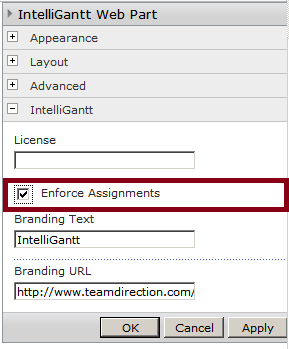
The IntelliGantt Web Part introduces its own section in the web part settings page. There are a couple others properties we can set (and more coming in the future), but we're focusing on 'Enforce Assignments'.


By default this is 'off' so that we match SharePoint's default behavior. However, if we click it 'on', then users must be assigned to a task in order to update it.


Back on the Gantt chart, the most obvious indicator is the percent complete thumb again-- it's no longer available.


In this case, nobody can update anything as there are no task assignments. The thumbs in the task are gone and in-place editing is disabled for all tasks. So let's give the administrator something to do.


Notice that the thumb has returned for the administrator's newly assigned task. He or she can now update this task, but no others.


With this feature, IntelliGantt enhances your task list so that not only can it communicate the current state of a project, it can do so with confidence.

Finally, this feature is a simple checkbox in the web part editor page if you choose to install the IntelliGantt.wsp solution. If you are working with the IntelliGantt.xap file, then you will need to edit the initParams value like so:

<param name="initParams" value="MS.SP.url=<your server url>,EnforceAssignments=true" />

Friday, September 24, 2010

SharePoint Gantt Chart Showing Multiple Predecessors

The IntelliGantt Web Part can show all the tasks in your hierarchy AND multiple predecessors. We had a couple users ask about this and I'm happy to reply unequivocally 'Yes'.

The IntelliGantt Web Part uses a SharePoint LookupMulti column, parses through the values, resolves the values to actual predecessor items and then computes the visible line drawing. It looks like this:


If your predecessor SharePoint column only holds a single value ('Lookup'), IntelliGantt handles that just fine.

Same thing for Assigned To and any other Lookup or LookupMulti columns in your SharePoint list.

Keep the questions coming, we're happy to answer them.

Friday, September 17, 2010

Publish MS Project 2007 Tasks to SharePoint 2010

Continuing to illustrate the combinations available to IntelliGantt, Microsoft Project and SharePoint users, today we will focus on publishing the full task hierarchy of a Microsoft Project 2007 plan to a SharePoint 2010 server. This is accomplished by the IntelliGantt Add In for MS Project, which actually works with both MS Project 2007 and MS Project 2010 (32-bit) versions and with SharePoint 2007 and SharePoint 2010. But in the interest of a shorter, more concise post we will focus on MS Project 2007, SharePoint 2010's improved task list and the powerful IntelliGantt Web Part.

First off is a simple project focusing on a few Eastern tasks created in MS Project 2007.


This is very similar to the 'North' project of the previous post in IntelliGantt, but we did add a new twist. Notice that in addition to predecessor links within a grouping we also have predecessor links spanning groups. For example, Trumbull is a predecessor of Boston. (Yes, I know this is not historically accurate. Boston was founded in 1630 and Trumbull was founded in 1797. Its just for demonstration purposes).

Next up we perform the standard IntelliGantt->Share steps to send our tasks in MS Project to a selected SharePoint list. As before, we will change the projects Workspace Settings to take advantage of new features in IntelliGantt and in SharePoint.


When we demonstrated IntelliGantt working with SharePoint 2007 we mentioned that IntelliGantt, during the Share operation, would create the 'Predecessors' column. With SharePoint 2010, this column is available to you out of the box and IntelliGantt will integrate with it. We also make sure to change the filter to 'Full Hierarchy', as before.

After IntelliGantt has sent the tasks to SharePoint, we see tasks in the improved gantt chart that comes with SharePoint 2010.


Here it is a little easier to distinguish the summary tasks from normal tasks because the visuals are a little better. However, you will still need to dive into each summary task to see its sub tasks, just as with SharePoint 2007.


Again, the task visuals have improved a bit as you can see the predecessors when both tasks are in the same group. However, remember the predecessors that spanned groups? For example, Trumbull being a predecessor to Boston? It's not viewable with the SharePoint 2010 task list.

This is where the IntelliGantt Web Part shines as it provides a full hierarchical view, which of course means it shows all predecessor links. The IntelliGantt Web Part brings all your project pieces into view.


Rest assured that this is just tip of the iceberg for what the IntelliGantt Web Part can do. Other features, such as the ability to add additional SharePoint task lists to the view will be demonstrated in a very near future blog post.

Wednesday, September 15, 2010

Publishing Project Task Hierarchies to SharePoint

Two questions for you:

1) How can you publish full project hierarchy to a SharePoint 2007 or SharePoint 2010 Task List?

2) How can you view a full project heirarchy in a SharePoint 2007 or SharePoint 2010 Task List?


The answers to question number 1 are:

IntelliGantt
Microsoft Project 2007 (Standard or Professional) with the IntelliGantt Add In
Microsoft Project 2010 Professional


The answer to question number 2 is:

The IntelliGantt Web Part


TeamDirection has created the next generation of SharePoint integrated Gantt Charts using Silverlight to bring you automatic updates, high-fidelity printing, dynamic timescale changes, future Windows Mobile 7 support and....

the ability to view a full project hierarchy in either SharePoint 2007 or SharePoint 2010.

Over the next few blog posts I will take you through the permutations of publishing projects to SharePoint and using the IntelliGantt Web Part to view them in their entirety.

First up is our IntelliGantt rich client application.


Here we have a four projects spanning the compass and are currently working on 'North'. Within North we have three northern states as summary tasks, three cities within each state and a few predecessor links. (Does this mean Ann Arbor precedes Detroit? Only in the alphabetical sense for this post-- people from Michigan, I mean you no harm :) ).

IntelliGantt has a very powerful 'Workspace Settings' screen that lets you configure all sorts of things. As of build 173 there are two significant features:


1) The new 'Full Hierarchy' task filter. This filter tells IntelliGantt to send the entire project, including the parent/child relationships between summary tasks and sub tasks, to any SharePoint task list of your choice.

2) The 'Predecessors' field, which has been upgraded to use a SharePoint lookup column in order to enhance usability and match MS Project 2010 SharePoint support.

Note that neither of these features are 'on' by default. This is because many folks are used to the flat listing of tasks in SharePoint and because, in order to dynamically create the Predecessors field (for SharePoint 2007), the IntelliGantt user will need at least 'Designer' permissions.


If you would like to see all the steps to publish a project with IntelliGantt, here is a screencast for you.


Once the project has been published, we can see the results in SharePoint:


OK, its a little underwhelming in the native, out-of-the-box SharePoint Gantt View. Believe it or not, the three 'state' tasks are indeed summary tasks containing sub tasks-- you'd just never know it in this UI. For example, you can click on 'Michigan' down at the bottom to see its contents:


However, you lose the context of the project-- notice that Wisconsin and Minnesota have disappeared? Also, remember that we created two predecessor links among the tasks? The task list in SharePoint 2007 does not show them.

How about a task list that shows the entire project? Like the IntelliGantt Web Part. For example, if I drop the IntelliGantt xap file into this SharePoint site I can get a great view of everything:


Here we see the entire project hierarchy with visual distinction among site, list and task item elements. Basic Red/Green colors show what is behind versus what is on track. Simple scrolling takes you up and down ALL your tasks (and we've tested with 10,000+). Predecessor links between tasks. And of course many more features that we will be showcasing.

The last thing I want to point out is, because the IntelliGantt Web Part is in fact a Silverlight application, you don't need to install it as a web part. You can in fact drop it into any SharePoint site, be it on a server down the hall, a 3rd party hosting provider or even Microsoft's BPOS solutions. Because of this flexibility you can use IntelliGantt's rich features for your project in any SharePoint hosting scenario.

We have detailed instructions written up for you for both SharePoint 2007 and SharePoint 2010.

Monday, August 09, 2010

SharePoint WSP Files for 2007 and 2010 Available

Beta 2 is looking good. We managed to squeeze that last feature in (enforcing task assignments so only folks assigned to a task can update it) and are in the final weeks of testing now. We have a couple nits beta testers have let us know about and vertical scrolling could still be a little faster, but overall we are very pleased and look forward to even more feedback.

We have identified three installation scenarios to support--

Installation on a Microsoft BPOS or 3rd party hosting solution
Installation on WSS 3.0 or MOSS 2007
Installation on SharePoint Foundation 2010 or SharePoint Server 2010

Because we are making the underlying IntelliGantt Web Part xap file available, you can install it on any SharePoint 2007 or SharePoint 2010 server anywhere! This will make it easy to 'kick the tires' or deploy the IntelliGantt Web Part for your immediate needs. Full instructions for installing the xap file are here.

If you do have administrative access to your SharePoint server, then installing the IntelliGantt Web Part makes sense as it will show up in the web part gallery in the 'Project Management' category.

Here is more information and the download link for the WSS 3.0/MOSS 2007 WSP file.

Here is more information and the download the link for the SharePoint Foundation/SharePoint Server 2010 WSP file.

Wednesday, June 09, 2010

Using SharePoint Views to do a Simple Workflow

We just posted a couple screencasts to show how IntelliGantt can take advantage of two things:

1) The ability to work with any SharePoint view
2) Applying views to automatic refreshes

That's a little abstract so let me run through the scenario because the result is quite useful.

SharePoint 2010 introduces a new column in the task list called 'Predecessor'. (SharePoint 2007 doesn't have this by default, but IntelliGantt can add it for you). The idea here is to capture more schedule information in SharePoint. But other than drawing a pretty line from the finish date of one task to the start of the next, what is done with this data?

Well, IntelliGantt makes use of it to flip the Status of a task when its predecessor is marked as 'Completed'. Turns out computers are very adept at traversing dependencies and updating them when things change. So, IntelliGantt finds all the successors of a completed task and changes their status to 'In Progress'.

This in and of itself is interesting, but combined with a new SharePoint view and IntelliGantt's refresh logic the feature becomes dynamic.

That is to say, we create a view called 'My Tasks In Progress'. A SharePoint team member can then select this view in IntelliGantt and remove their hands from the keyboard and mouse. When predecessors to their tasks are completed, their own tasks will pop into view automatically. Team members don't have to click 'Refresh' constantly to see the latest. IntelliGantt keeps them up to date.

The result is the handoff between dependent tasks becomes that much more efficient. Even better, the team members don't have to change a thing-- IntelliGantt will do the handoff from one task to the next for them.

This is quite a bit to explain so please do see the 'SharePoint View' and 'Workflow Tasks' screencasts.

Wednesday, June 02, 2010

Searching SharePoint Task Lists

It's one thing to be able to view all your tasks in one spot, it's another to find the tasks most important to you. Given that SharePoint 2010 can now support millions of potential tasks at every level of a task hierarchy, a robust search solution is now critical to help users make sense of it all.

The IntelliGantt Web Part was designed with this exact scenario in mind. We just posted a new screencast highlighting the new 'Search' feature within the web part and, even after developing it, the coolness factor is at eleven!

Basically, it uses the one tried and true search metaphor the world has come to love-- a text box. OK, that in itself may seem underwhelming, but another design goal for the IntelliGantt Web Part was to make it as accessible as possible. Since everyone knows how to add keywords to a text box and search, it seemed like a natural.

Text based keywords, dates and date ranges are all supported. The date fields are parsed according to the locale on your system so folks in the US and folks in the EU both get their date formats exactly as they want them.

Searches are done using generated CAML queries so IntelliGantt never inundates the network with a huge volume of web services data just to iterate over all the SharePoint list items locally.

The coolest thing, though? After seeing the screencast, I think its the ability to 'splice' the search with a selected list view on the fly. For example, you can easily combine a 'My Tasks' view with a keyword value of 'In Progress', 'Behind' or a date range. This makes it easy for SharePoint users to create specific views for their needs, and a deviously clever way for users to add the extra bits they need to personalize things for them.

We're just begun with our search text box and look forward to adding more features and cleverness.

Wednesday, May 26, 2010

Installing the Silverlight Control on SharePoint 2010 and 2007

We just posted to our forum detailed steps how to install the IntelliGantt Web Part for SharePoint on both 2010 and 2007. Yes, we have the full matrix: Foundation, Standard and Enterprise 2010 are supported, as are WSS 3.0, MOSS Standard and MOSS Enterprise.

The idea here is a user will be able to drop the IntelliGantt control into a SharePoint server and evaluate how well it works for them without having to bug IT. But yes, we will have an actual package to install on SharePoint servers properly as well.

In the meantime, though, this is the method. It's straightforward on SharePoint 2010, but SharePoint 2007 makes you go through a particular hoop (which we've labelled as 'Step 13').

Finally, we encourage you to join our moderated forum, where we look forward to answering your questions and providing more in-depth information.

Tuesday, May 18, 2010

Searching for Tasks Through Sites and Subsites

As we've mentioned before while introducing the IntelliGantt Web Part for SharePoint, you have the option to look at all tasks within a SharePoint site, as below:


(Note: While it was cool to see the Gantt Chart on a SharePoint site's home page, I wanted it a little bigger. So I created a new Site Page, added the IntelliGantt Web Part and had it take up all the real estate).


You also have the option to drill down through sub sites and find all tasks from buried in your SharePoint hierarchy as well:


One of the first things you'll likely notice is you have a lot of tasks to look at! Wouldn't it be nice to have a search button that let's you search for simple keywords through all the tasks that IntelliGantt finds? We thought so too. The sharped eye'd reader will notice we've introduced a new button since the last blog post-- Search!


When you click on the magnifying glass, a floating window pops up that let's you enter keywords in a simple text box just like Google. (If you're thinking 'how did you do a floating window?', go see Tim Heuer's excellent blog post and codeplex project. And please vote for it to be included in the web toolkit!).


Type in a word or two that you'd like to find...


...and IntelliGantt will query your SharePoint server for tasks that have text fields matching your words.


Just in case you are wondering, IntelliGant did not pull down all items in the Task List from SharePoint and search for them locally, one at a time, on your computer. Instead, IntelliGantt created a CAML query that executed on the SharePoint server so that only results travelled across the wire. If that sounds a little too techie, just know that you're SharePoint administrator and IT networking folks will thank you!

The other really powerful feature of Search is to easily combine it with views, which often have their own search information defined.

In the above screenshots you'll notice we used the 'Default' view for each Task List, which is usually the 'All Tasks' view. However, we can also select 'My Tasks' and apply it to every Task List.


This is very helpful in and of itself as it makes it easy for every user to see what's assigned to them. But what if they wanted to see what's assigned to them on a certain date? Again, the Search is your friend.

Bring up the floating Search window once more by clicking on the magnifying glass and type in a date (IntelliGantt will recognize dates as well and apply it to your task Start and Due dates fields).


Execute the search and now we've made a more complex search-- all my tasks on 6/15-- surprisingly simple.


Of course the more sites, sub sites, task lists and tasks you have the more powerful this feature becomes. It's perfect both for team members who would like one place to see what they need to do and for managers who need one place to see what's been done.

Tuesday, May 11, 2010

Print the IntelliGantt SharePoint Gantt Chart

Not to give away my age, but back in the early 1990s we were on the cusp of the paperless office. By the mid-nineties we were on the precipice. At the end of the millenium the experts assured us that, after that Y2K thing caused everything to stop, when we restarted (rebooted?) the office would be absolutely, guaranteed, bet-your-bottom-dollar-on-it paperless.

In that context, we are pleased as punched that in the year 2010 Silverlight 4 now supports printing. I have to admit I like the theory of a paperless office, but I like the reality of what customers want even more-- and in no uncertain terms people want to capture our Gantt Charts on paper.

Now you can.


1) Go to a SharePoint site with the IntelliGantt Web Part for SharePoint installed.


2) Click the picture that looks like a printer.


3) Select a date range to print and a printer. By default IntelliGantt chooses the start and finish of the project. You can adjust this on the fly.


4) When you click 'Select Printer' the standard printer selection form in Windows pops up. I will choose a PDF for reasons that will be clear at the end of this post.


5) Since I chose PDF, it will ask me where I want to save it on disk. I find this step interesting because, remember, this is from a Silverlight application. Good golly, we can start to interact with the desktop. Awesome!


6) Here's probably the coolest visual part-- you can watch the pages being printed one at a time with a full preview for each page. If you see something you don't like, cancel it.


7) Voila, we are done! This example happens to be in PDF, but it just as easily could have been to your printer where the Gantt Chart would be waiting for you-- nice and warm in the print tray.


One thing to note about the output. Compare the visual in step 1 with the last visual above. Notice that the print output shows the complete Gantt Chart while the first image didn't have quite enough space for the start and finish dates? The print routine pays attention to the start and finish you specify in the print dialog and figures out what's necessary to print the range. Nice.

Of course, it's still hard to send paper through the internet. But I do have this PDF file! Which means if you want to see the actual PDF I just produced and print it for yourself, here you go.