Showing posts with label Color. Show all posts

Monday, November 30, 2015

Task Colors, Ordinals and Printing


We've updated IntelliGantt for SharePoint to enable color options for the task list, gantt chart and even task rows. Pick your exact color from a rich chooser control. The IntelliGantt framework colors can be changed on a per instance basis, which can be helpful in quickly identifying which group of sites and tasks in your selection. Individual task rows (and optionally  their children) can also be assigned a foreground and background color to bring highlighting to important tasks.

We've also made it very easy to change the position of a task by changing its ordinal value, just like you would any other number value. Simply select the Ordinal cell and type in the ordinal value of where you'd like to see it moved toward. IntelliGantt will quickly place it there (as long as its in the same task list) and even change parentage if needed. And remember, if you change your mind just click the 'Undo' button.

Finally, we enhance printing by giving you a WYSIWYG preview before sending the task list/gantt chart to the print service. This image hides the other screen elements so you can focus purely on the tasks at hand. Choose landscape layout and the print driver of your choice for beautiful charts (especially with your own colors!).

Visit our help page for the minimum installation or the full installation bits.

Choose a Color for Look and Feel
Change Task Ordinals
 
Color Your Tasks and Backgrounds

Tuesday, January 13, 2015

Coloring Tasks, Subtasks and Backgrounds

One of our more popular features is the ability to custom color a SharePoint task. We took it a bit further with the latest release of IntelliGantt for SharePoint 2013 by also letting you color the task row background and giving you the option for children to inherit the color settings. We store the color settings with the individual task in a text column called 'Color'. Therefore in order to use this feature the SharePoint Task List settings must be edited with the new 'Color' text column.

Once the Color task column is available, simply click or touch within the Color cell for the task you would like to change. The simple color editor appears.

A color value is a 6 character hexadecimal string you've probably seen on the web. Lots of tools online to help with this. As soon as a 6 character value is entered you will see the task color change.

When a color value is set, IntelliGantt for SharePoint shows it in the Gantt chart and in the grid. This let's you know the specific task color has been set.

You can also set the background color for a task row. Again a 6 character hexadecimal value is used, but IntelliGantt also takes the color and applies 33% opacity to it so as the background color doesn't mask everything out.

The color setting can also be applied to all the sub tasks of a task by clicking the 'Give children the same settings' checkbox. This lets you easily highlight a group of tasks.

Like the foreground color, the background color is shown both in the Gantt and Grid plus an additional circle in the task Color cell so you know where it has been set. This can be helpful when applying the color to children as well (which is designated by the checkmark).

You can try it out yourself today with these installation instructions for SharePoint 2013 Online or Inhouse.

Wednesday, November 13, 2013

Task Colors in SharePoint 2013

January 2015 Update for SharePoint 2013

One of our more popular features is the ability to change the colors of tasks in SharePoint task lists. Our IntelliGantt for SharePoint App carries this feature forward and adds the extra ability to apply the color to all of a tasks children as well. This is a little different than setting the color for a choice value, which is coming shortly. Rather, this is saying 'forget all algorithms, just make this task pink!', or something to that effect. We hear this is a great feature for presentations where you simply want to highlight a block of tasks with a particular color. Here's how it works.

Let's say we start with a simple task list and we want to make 'One' purple.

IntelliGantt for SharePoint recognizes columns names and, if they match a particular name, will allow new features. Color and ColorChildren are such examples. To enable the color changing feature, we must modify the list columns for our task list. First go to the actual SharePoint Task List and choose the 'List Settings' ribbon icon.

Make sure you have elevated permissions as next we need to create two columns. One for storing the color and the other for storing a flag if we apply this color to children.

We need to add a 'Single line of text' column named 'Color'. This will be the columns that contains a hex-code value of the color we choose for this task.

By default SharePoint will add this column to your current view, but since they're not really user-friendly, we recommend that this column is not displayed. The other column we are going to create builds off the 'Color' column we just added. In this case it will be a Yes/No column type named 'ColorChildren'.

Similar to the 'Color' column, it is not necessary to add the 'ColorChildren' column to your current view.

Now how do we use this newfound color feature in IntelliGantt for SharePoint? First let's go to the IntelliGantt for SharePoint App instance within the same site as the Task List we just modified.

We have task 'One' selected, so click the '+' button and the four colored squares buttons to add the color. They are both underlined in this picture. You'll see these same underlines in the App as well.

This control lets you click anywhere on the color chart, type in a specific hex color value and change the color's luminosity. The checkbox below the color chart lets you apply this color choice to all children of this task as well. This makes it easy to color blocks of tasks. In this example we wanted to make the task purple.

Clicking on the green checkmark in the upper right of the color chooser accepts the change. Clicking on the 'X' will reject it and undo any color changes you've made. In this case we have accepted and our Gantt Chart shows the purple color for the task.

If you're curious what values are actually stored in SharePoint, here's what our choices look like.

Because we are using the SharePoint Task List to store the associated color information, its open to other processes changing the color as well. For instance, you might kick off a workflow that highlights all extremely important tasks in chartreuse. We will also show in the coming weeks how you can tie color choices to Choice Columns as well.

Wednesday, September 18, 2013

Adding Colors to Tasks and their Children

For all the folks who have been asking about how to change the colors of tasks in IntelliGantt, and there have been many of you, I have good news-- you can now change the color of any task in IntelliGantt! We also went a step further and added a toggle so that if you want that color to apply to all the sub tasks as well you just click a checkbox. Finally, if a sub task inherits a color from a parent task but you really want it to be purple, you can do that too. Let's take a look.

Here's a project within IntelliGantt for Basecamp using the default colors-- green for tasks that are completed or are ahead of the timeline and red for tasks that are not completed and behind the timeline. To change the color of a task first select it (in this case we have selected the task 'Fifth List') and click the '+' button on the left-side.

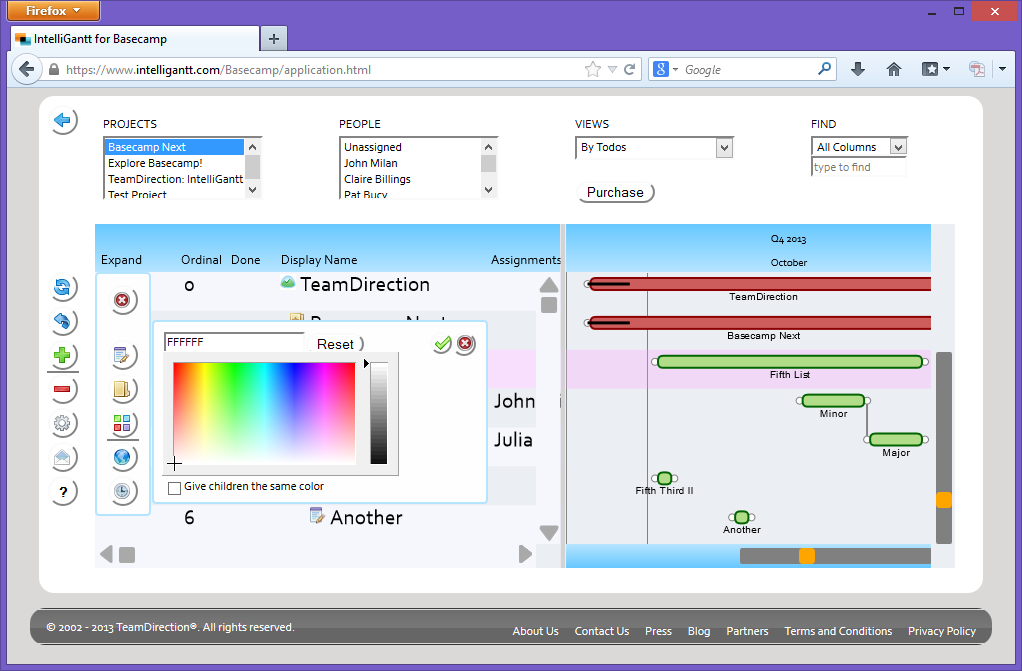
This brings up our new and improved palette of add options. This picture shows what it will look like the first time you click the '+'-- it will have the 'Add Task' option pre-selected for you. Hopefully it makes sense that to change colors you click on the four 'colors' image. A little underline under each image also tells you what is active at the moment.

Once the task and the color palette have been selected a color chooser pops up. By default it will be FFFFFF, which we are treating as 'use the default color'. You can change this by clicking anywhere on the color map. You can also change the luminosity with the vertical slider just to the right of the color map. As you make changes you will see the new hexcode in the edit box and the chosen color applied to the task.

If you would like to apply the same spiffy color to all of the select tasks sub tasks, we have the 'Give children the same color' checkbox for you. This can be overridden at the child task level by directly setting its color. If the child is just using the default color, then it inherits the parents color.

And that's it. Simply click the checkmark button to accept the changes or the X button to cancel and revert to the previous color scheme.

Once you accept or cancel the changes you go back to the palette options. You can either exit this palette by clicking the X at the top (highlighted in red) or choose another palette tool to work with. In this case, since the post is about colors, we will select the color palette and reset things back to the default scheme.

To reset the color scheme of the selected task back to the defaults, simply click the 'Reset' button. Or you can type FFFFFF back into the hexcode edit box.

Accept changes when you're ready, or if you change your mind later you can always click 'Undo'.

The color chooser feature is available in IntelliGantt for Basecamp, IntelliGantt for Google and IntelliGantt for Everyone. Coming soon, fun with columns!

Friday, September 16, 2011

More Fun with Colors

The other day a customer let us know that the marketing group had a problem with adopting the IntelliGantt Web Part. The top calendar and bottom navigation controls were the wrong color. This was an instance where design (and color) matters and thankfully, because we had put in color support for tasks, we were able to quickly turn around an update that supports calendar and navigation color too. In fact, we provided an update within a week.

Here's how it works. Below is our default color palette.


I think it looks pretty good but obviously folks in marketing disagree. No problem, let's modify the 'IntelliGantt Colors' property.


We'll put in my second favorite color scheme. Note that the web part asks for two colors for both the calendar and navigation regions. We do this because a gradient looks much nicer than a solid block of color. You can enter any two colors in and IntelliGantt will show resulting blend of colors.


And the finished product:


Don't forget you can also change the branding text at the bottom right of the control as well. This will also aid in branding and keep even more folks happy.